
How to build a Mobile API or HTML 5 app in 5 minutes
Last night I had the absolute joy of spending a little more than an hour taking about Visual Studio 2013 & (more importantly) Visual Studio LightSwitch at the Developer User Group. It was great to have a standing room only session with loads of participation and hopefully I got to show off why I love LightSwitch.
This talk was mostly just me doing massive demo fun and running ALL OVER the place, we covered:
- LightSwitch 101 (create forms, add data etc…)
- Some more advance layout tricks in LightSwitch
- How LightSwitch works under the covers
- Visual Studio 2013 profile & notification features
- Visual Studio extensions
- Visual Studio Code Lens
- Building custom clients with OData
- Wrapping data in Web API
and so much more. This really was a session driven by the audience so it was great fun for me. The slides (which likely won’t be of much use) are below & after that is the download for the demos!
Thank you everyone for making it a super special evening for me!
Presentation Dump: End of 2012 & First half of 2013 - POPI, JavaScript, Open Source & .NET 4.5 Async
It has been an entire year since my last presentation dump, so following that tradition – here are some of the talks I gave in the last year that were not immediately available:
Protection of Personal Information Bill (POPI)
Description
A short presentation that focuses on the proposed POPI law, how it impacts businesses, technology, IT depts & the cloud. It was based on a draft so some aspects may have changed.
Thoughts
This was a tough talk for me, because the law isn’t something I spend much time focusing on. I spent a lot of time reading the bill & analysis for it and really was impressed how approachable all of it is. This is definitely a law we need to be aware of, but for most companies (who do things correctly now) it will mean either no changes or a slight update to some documents.
Open Source Licensing
Description
This talk focuses on what open source licensing is, how it should be applied inside & outside companies. It also looks at how Open Source != Free.
Thoughts
This talk looks at how open source licensing works & more importantly how it applies to company projects. Once again a bit of legal focus but very valuable info in it!
JavaScript Toolkit
Description
This presentation provides a quick glance at a number of tools that make development with JavaScript easy, quick & bug free. Loads of tools & ideas in it :)
Thoughts
The JavaScript toolkit talk looks at a LOT of tools and libraries for JavaScript & as I do a lot of this day by day – it was easy to get ready & a lot of fun to present.
How to give a great presentation
Description
This slide deck was used to give students an overview on how to give a great presentation, especially a technical presentation. It covers aspects like purposeful movement, technology, slide creation etc....
Thoughts
This is a talk I gave to some students about how to do a great talk & it pulls a lot of my own learning’s & learning’s from experts like Hanselman into it.
.NET 4.5 Async
Description
A look at some of the complexities of .NET 4.5 Async
Thoughts
The newest talk here which covers the Async keyword. The core focus here was not on the simple scenarios but rather to dive into the more complex scenarios and areas of pain that can occur with this new keyword.
JSinSA: Visual Studio - The best tool for web developers.
 Today I got to present to the ever amazing audience at JSinSA (it is one of my favourite conferences, so I may be biased). The talk I gave was very simple: Visual Studio, it is THE BEST tool for web developers, regardless of what technology you use. So if you use ASP.NET, PHP, Ruby, CoffeeScript etc... it does not matter – Visual Studio is right for you!
If you attended and are looking for the slides, demo bits, or a script of the demo – have a look below! For those who couldn’t be there, I have since done a recording of it to YouTube, which is also below!
YouTube
Slides
Nuget: Tips for presentations & life
In the short video below I cover how you can configure Nuget package sources to either local copy, which is great for backups when doing a presentation which relies on Nuget, or the the cache, which can provide an emergency store for recent packages if you have no Internet access.
TechEd Africa 2013: Windows Store Apps - Tips & Tricks
On Thursday I presented at TechEd Africa 2013 the third & final of my talks which was very personal in nature as I spent a lot of time talking about what I did wrong & what I wish I knew when I started building Windows Store apps. The title of the talk was Windows Store Apps – Tips & Tricks! If you click more (below) you will be able to grab the slides, demos & my demo script if you are wanting to see what I was doing.
TechEd Africa 2013: What's new in LightSwitch 2013?
Today I presented at TechEd Africa 2013 the second of my talks which is my personal favourite What’s new in LightSwitch 2013! If you click more (below) you will be able to grab the slides, demos & my demo script if you are wanting to see what I was doing.
The one item I gave the LEAST amount of coverage to was the SharePoint story, which is really amazing and deserved more. So if you would like to know more about it have a look at Brian Moores blog post on this. Of course, no LightSwitch talk is complete with a mention to Michael Washington (who is Mr. LightSwitch – if he was born in the UK, he would Sir. LightSwitch already) but I never showed his website URL, so here it is: www.lightswitchhelpwebsite.com
Download the completed demo
TechEd Africa 2013: What's new in .NET 4.5 & Visual Studio 2012!
Today I presented at TechEd Africa 2013 the first of my talks which is a massive two hour overview of what is new in .NET 4.5 & VS 2012! If you click more (below) you will be able to grab the slides, demos & my demo script if you are wanting to see what I was doing.
For those who could not attend, part one is very similar to this presentation what I did last year!
Haven't I seen these presentations before?
 In a few short weeks I will be speaking at TechEd Africa 2013 and if you have come to my talks before (previous TechEd’s, TechDays, Hogshead when I have had one too many) you may see that I am giving similar sounding content – so why should you come to these TechEd talks? What will be new and awesome? I am going to give you an honest review of what you can expect from the three talks below.
Windows Store Apps, Tips & Tricks from the field
This is a brand new talk, filled with awesome new content for people developing apps for Windows 8 today & going forward to the Windows ‘Blue’ world. Some of this is from Windows Store app Development Snack series but not all of it, especially in the architecture & tooling sections of the talk.
Note: This is not an introduction to Windows Store apps talk – I will assume the audience has some of the concepts of apps already. So for example, I will talk about background tasks but not explain what they are or where they used in any depth.
What’s new in .NET 4.5 & VS 2012
Same title as my TechDays talk and really this is the version 2 of that talk. So what can you expect different from TechDays?
- Part 1 is very similar, in fact you could probably just watch the YouTube video of that part & get 95% of the content. I will have some new tricks, especially since we have two updates to VS available now & I have adjusted the emphasis in some places – but that is the only changes in part 1.
- Part 2 is very different, both the WCF & LightSwitch sections are gone! LightSwitch was dropped because I have an hour long talk just on that :) WCF was dropped since the demo’s were not great and despite it being an amazing tool, the focus for the talk needs to be what’s new – and the new way for API’s is WebAPI. Do not read that as WCF is dead – hardly, just it doesn’t meet this talks requirements. This means I freed up a lot of time, so I am filling it with A LOT of new ASP.NET content. I will show you tricks & tips in ASP.NET land that will blow your mind away!
What’s new in LightSwitch
This session is vastly different my previous LightSwitch talks – we will start in roughly the same way and look at what it does however rather than 1 hour on that, we do a higher level treatment of that in 20min. So if you never have seen LightSwitch – I am ensuring you are catered for. That is followed by a quick view of the new stuff and then finally we look to the future and the amazing new items coming down the line.
This talk is aimed at those who have never seen LightSwitch, those who have & those we are using it and want to see where it is headed – so basically everyone :)
Visual Studio: PRESENTON!
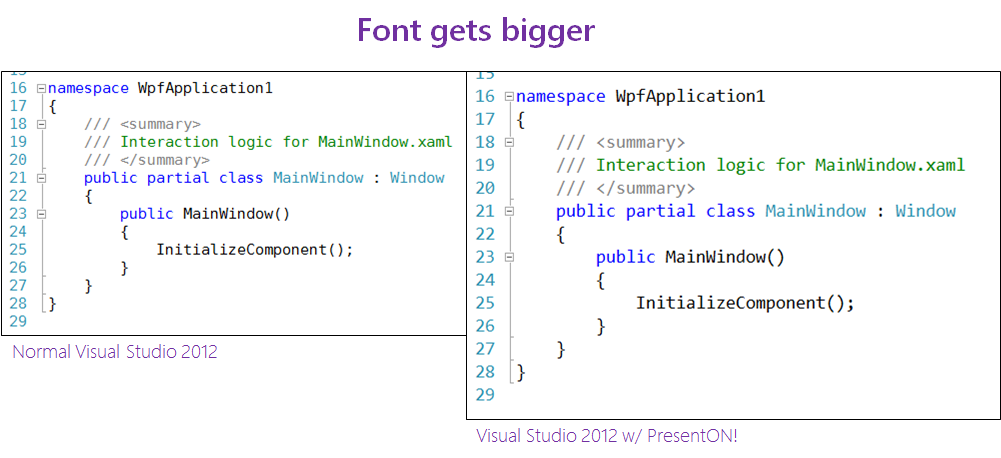
It sounds a bit like something Inspector Gadget may say: PRESENT ON! but this is a command in Visual Studio that makes VS shine for presentations. I spoke about it in my video on presenter tricks but love this so much, it needs it’s own blog post too! Simply put, it makes the entire of VS look better:

To show this I took a photo (with camera phone) when off & when on during a talk I recently gave. Just looking at the difference – the second is easier to see what is going on.
While it does lots of things, let me highlight some of the critical differences:

So how do you use this?
First you must download the productivity power tools extension from Microsoft. This is a free extension & not only gives you this, but also gives you a lot more AWESOME functionality. Next you need to go to the Quick Launch box in Visual Studio 2012.

Now type: PRESENTON and hit enter (or click the item in the list when it appears). BOOM! Done! Happy Audiences!
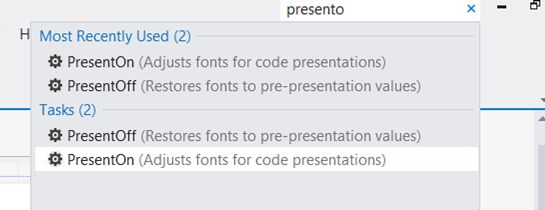
When you are finished, just type PRESENTOFF in Quick Launch and you are back to normal.
Presenter Tricks: WOW your audience
 As TechEd is fast approaching, I thought it would be a great time to share some tricks I will be using to make my technical presentations a success. These are five tricks that focus on technical presentations on Windows and they include:
- ZoomIt: An essential tool to focus the audience & magnify content
- Turning off Windows 8 notifications
- Turning on HIGH PERFORMANCE mode in Windows, so everything runs amazingly
- Turning off presenter view in PowerPoint 2013
- The amazing PresentOn option in Visual Studio, which makes VS look amazing on stage!
Download links:
- ZoomIt Download: http://technet.microsoft.com/en-us/sysinternals/bb897434.aspx
Pro Power Tools Download: http://visualstudiogallery.msdn.microsoft.com/3a96a4dc-ba9c-4589-92c5-640e07332afd