
Installing Windows Phone Developer Tools on Windows 8
The joys of being on the bleeding edge, is we are sometimes bleeding such as the fact the Windows Phone Developer tools have not worked on Windows 8… until now. However the steps to do get this working are not easy and are spread out a bit on the Internet, so this post aims to give you a one stop, quick reference way on how to get it done in five steps.
Step 1 – Get the bits
You will need THREE downloads for this:
- The Games for Windows Marketplace Client: http://www.xbox.com/en-US/LIVE/PC/DownloadClient
-
The Windows Phone SDK 7.1: http://www.microsoft.com/download/en/details.aspx?displaylang=en&id=27570
personally I would get the ISO for it from: http://go.microsoft.com/fwlink/?LinkID=226694
- The Windows Phone SDK 7.1.1 Update: http://www.microsoft.com/download/en/details.aspx?id=29233
This should set you back 1.1Gb in bandwidth.
Step 2 – Install the Games for Windows Marketplace Client

Troubleshooting notes:
- If you have problems with the install for the GWM client please see: http://blogs.msdn.com/b/astebner/archive/2012/02/29/10274694.aspx
- If you installed the Phone SDK first (step 4 before step 1, madness) then you need to do a repair of the Windows Phone SDK after you install this.
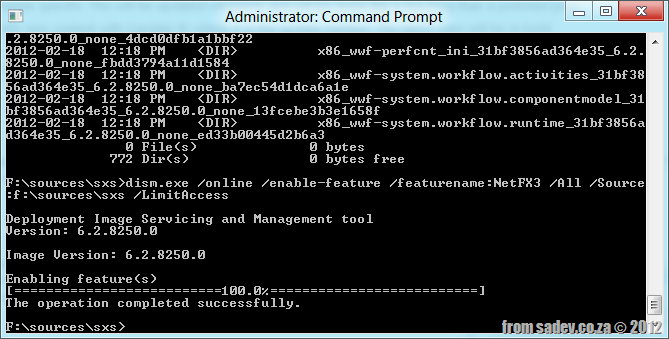
Step 3 – Install .NET Framework 3.5
Now pop in your Windows 8 DVD (or mount the ISO), next open a command prompt AS ADMINISTRATOR and navigate to the \sources\sxs folder on the DVD and run the following command. My DVD was mounted on drive F so note you may need to change the underlined part of the command to match your situation: dism.exe /online /enable-feature /featurename:NetFX3 /All /Source:f:\sources\sxs /LimitAccess
Step 4 – Install Windows Phone SDK 7.1
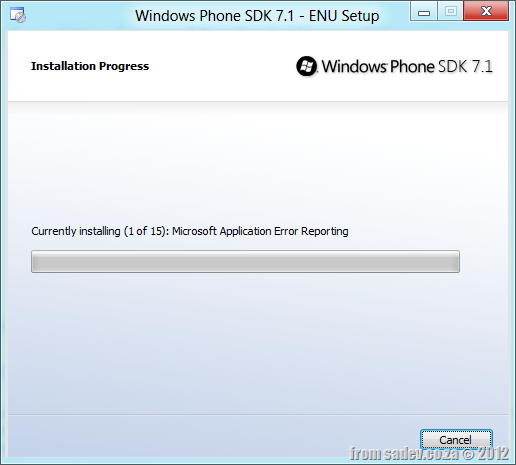
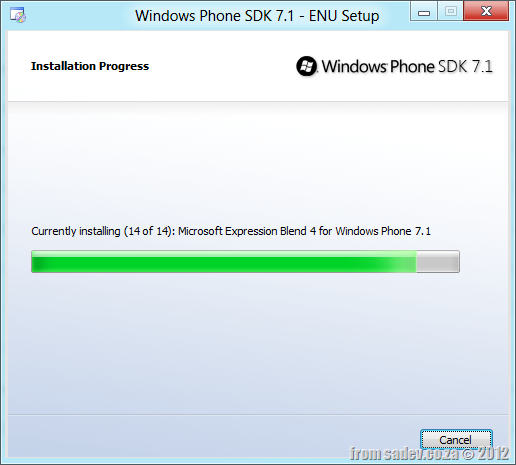
Now run the installer for the Windows Phone SDK 7.1 as per normal.
Troubleshooting notes:
- If you get any errors about installing some components, try to copy them from the disk to the desktop – if you get a invalid MS-DOS function error, then you have a corrupt ISO and need to download it all again.
Step 5 – Install Windows Phone SDK update
Almost there, just the Phone SDK update to install!

Done!
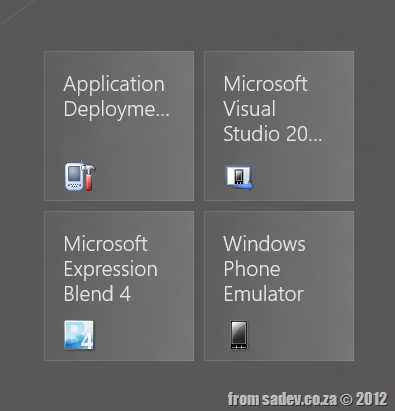
And there we are, the tiles are on the start screen, Visual Studio 2010 launches (and hurts my eyes with all those colours :P ), the new emulator options are all there in the drop downs and the EMULATOR WORKS!!!!
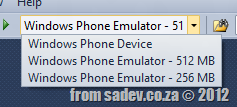
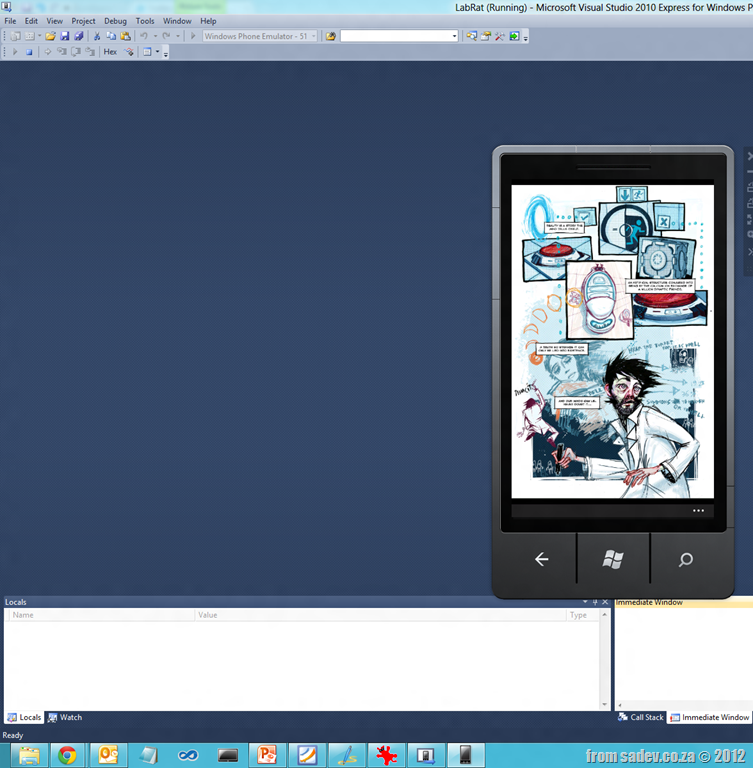
Troubleshooting notes:
- If you have a CPU that supports SLAT (for example a Core i7) you can run Hyper-V on Windows 8, which hurts emulator performance. Turn if off it you can.
Windows 8 Bootcamp
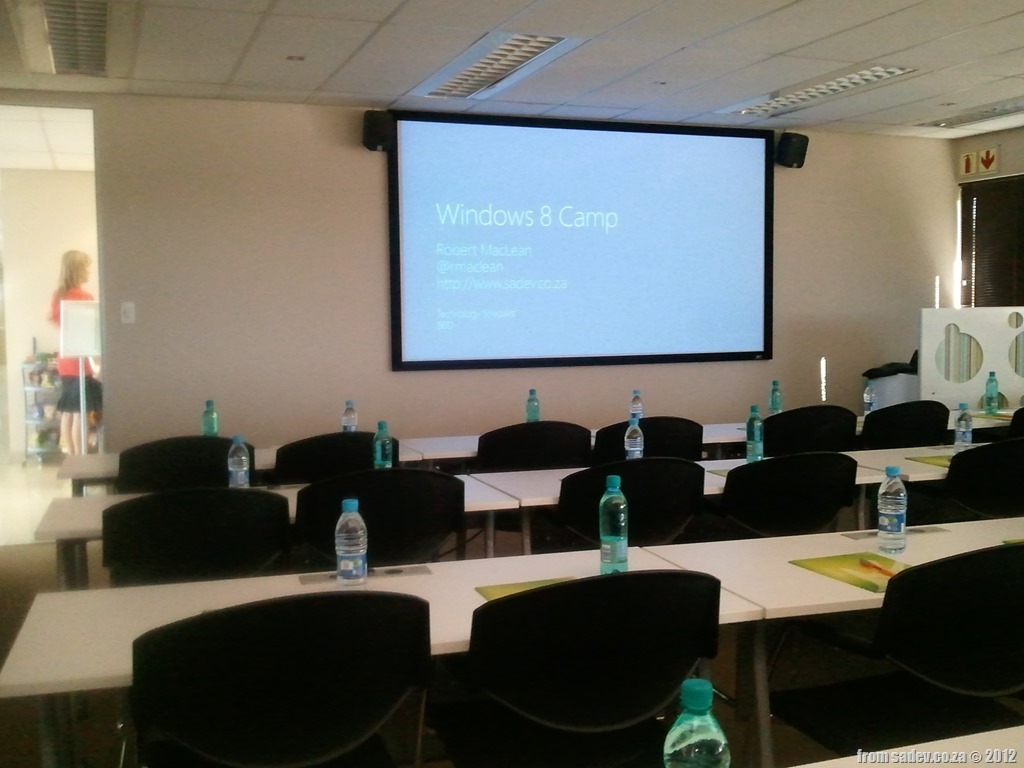
 Last week (14th March 2012, to be exact) I had a great opportunity to travel to Cape Town and present the first ever Windows 8 Bootcamp there! (I missed the first in South Africa by two days, that was presented in Jo’burg by Rudi Grobler).
It was a small event, but it was a great day of learning and sharing and what a lovely place it was to present, as you can see from the photos below!
One of the requests from those who attended the event was the demos & slides – however there is a snag, Microsoft owns the slides and they are not ready for them to be publically shared  That said the demo bits are below, so hopefully that will keep you sorted until the slides arrive.

Upgrading Visual Studio "11" Developer Preview Metro Projects to Visual Studio "11" Beta Metro Projects
 If you created Metro style (WinRT) projects in Visual Studio “11” developer preview (alpha) and you try to open them up in the beta you will have a few load issues. These are ones I have found in my apps so it is not exhaustive, but seems like the most common.
Projects will not load
The projects themselves will not load with the following error: The imported project "C:\Program Files (x86)\MSBuild\Microsoft\WindowsXaml\v1.0\Microsoft.Windows.UI.Xaml.CSharp.targets" was not found. Confirm that the path in the <Import> declaration is correct, and that the file exists on disk.
The solution to this is to open the project file and navigate to the <Import> node and change the path from v1.0 to v11.0 (see the highlighted extra 1 in the image below that is needed):

Compiler Directive
If you used the compiler directive WINRT that has been changed to NETFX_CORE so you will need to update your code.
Package fails to build
The package fails to build/deploy and complains about an InitialRotationPreference attribute. To solve this open the Package.appxmanifest file and find the <VisualElements> node and you should find an line similar to this:
<VisualElements DisplayName="AtomicMVVM Metro Style App Demo" Logo="Images\Logo.png" SmallLogo="Images\SmallLogo.png" Description="AtomicMVVM Metro Style App Demo" ForegroundText="light" BackgroundColor="#000000" InitialRotationPreference="portrait">
What you need to do is remove the InitialRotationPreference attribute from the end, so it ends like this:
<VisualElements DisplayName="AtomicMVVM Metro Style App Demo" Logo="Images\Logo.png" SmallLogo="Images\SmallLogo.png" Description="AtomicMVVM Metro Style App Demo" ForegroundText="light" BackgroundColor="#000000">
Big load failure image from: http://www.hostedfile.com/pictures/76451/big-load-failure.html
How different is Metro Style (WinRT) development really? The beta post
 Note: Before you read this post, it is using the public consumer preview (beta) of Windows 8, VS 11 & .NET 4.5, so I expect some issues will likely be resolved in later releases. Check the site out for more info!
With the beta of Win8, VS 11 & .NET 4.5 now out I thought I should post again (first post about this can be found here – recommended reading to see how it has improved) how it has improved or changed since the alpha. This is not meant to be an exhaustive list, it is a list of the most common things (where most common is what I use, because I am pretty common  )
)
Namespaces
Namespaces have been polished and there is a much better alignment of the new awesomeness to the old so this is getting much better.
#if NETFX_CORE
    using Windows.UI.Xaml.Controls;
    using Windows.UI.Xaml;
    using Windows.UI.Core;
    using Windows.UI.Xaml.Controls.Primitives;
#else
    using System.Windows.Controls;
    using System.Windows.Controls.Primitives;
#endif
Duplication of INotifyPropertyChanged, ICommand & INotifyCollectionChanged is SOLVED!
I mentioned about the EPIC FAIL of the duplication of core interfaces – that has been solved! 
ObservableCollection<T> is broken is SOLVED!
The double facepalm that was breaking ObservableCollection<T> has also been solved – so this means your Metro style apps are more like your WPF & Silverlight apps than ever before.
User Controls must be created on the main thread is SOLVED!
I did not get a stupid behaviour where a user control had to be created on the main thread, and thankfully that has been solved! You can now create user controls on other threads!
IValueConverter has been changed
Previously the Convert & ConvertBack methods second parameter was a string, now it has been changed to a Type. This is a good move as it allows for better compares, but means any IValueConverters from alpha will be broken and it is a simple change:
//Before broken
public object Convert(object value, string typeName, object parameter, string language)

//After changing type of second parameter = working
public object Convert(object value, Type typeName, object parameter, string language)
Good work image from http://bloggers.com/posts/happy-developer-37379
Important changes to Express Editions of Visual Studio "11"
 Note: The source of this is the Visual Studio “11” beta Product Guide (http://go.microsoft.com/fwlink/?linkid=243994) so this may change by release.
Today we have five Express products: C++, C#, Visual Basic, Web and Phone however with the launch of Visual Studio “11” we will only have TWO!
These two editions of Express we will have are Web & Windows. I do not believe we will only ever have two editions, as the 2010 Express editions grew during the product so I would expect a few new ones coming along post launch.
So how does the old Express editions map to the new Express editions?
- C++ maps to NOTHING
- C# for WinForm/WPF/Silverlight maps to NOTHING
- VB for WinForm/WPF/Silverlight maps to NOTHING
- Phone maps to NOTHING
- Web maps to Web
Let me reiterate this, if you want to build non-Metro applications (unless they are web) there is NO Express edition anymore for this! The Windows Express edition ONLY allows the building of Metro apps (including ARM). Web dev using Express editions still continue to work as before.
Both Express editions have a new enhancements too, which is a fantastic thing: The ability Version Control & Work Item Tracking with TFS is included out of the box.
For the Windows express edition it has even more enhancements
- A subset of static analysis (fxCop) for helping developers pass Win Store evaluation
- Performance Profiling has been added: CPU Sampling for C#/VB/C++ Metro apps and Instrumentation for HTML/JS Metro Apps
Stop/Important image from http://sitechoppers.com/why-it-is-important-to-build-your-downline/
Charting with Lightswitch
One of the key business aspects not included with Lightswitch 2011 is a great set of charting controls and often I need to have a few for the projects I am working on. Thankfully with the Silverlight Toolkit and a touch of code I can have BRILLIANT charts for no extra costs!
Below are three charts using the Silverlight Toolkit in Lightswitch, which I think look FANTASTIC and it is fairly easy to do in four easy to follow stages.
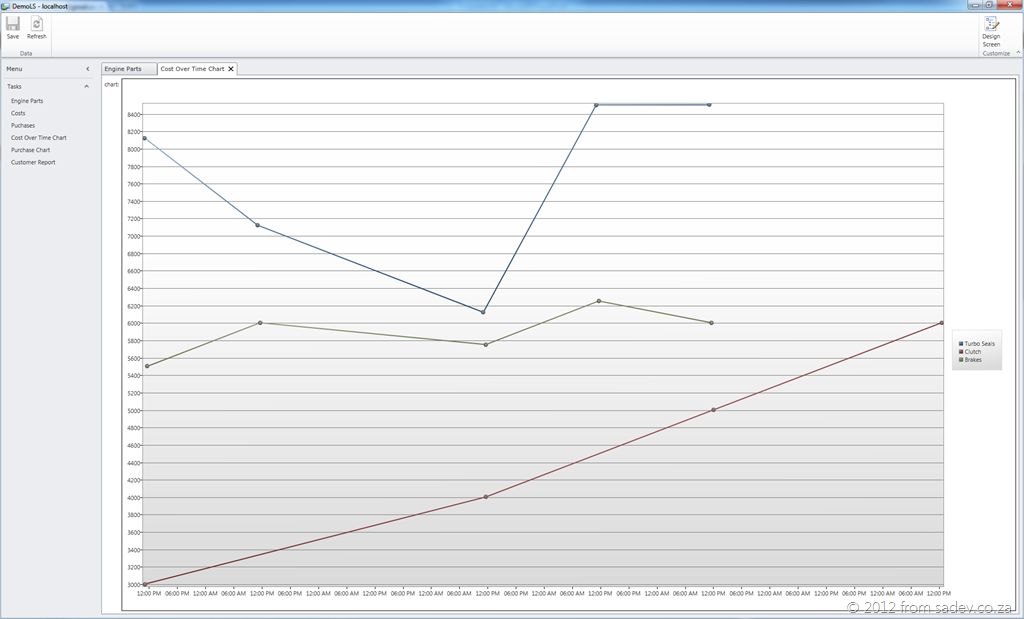
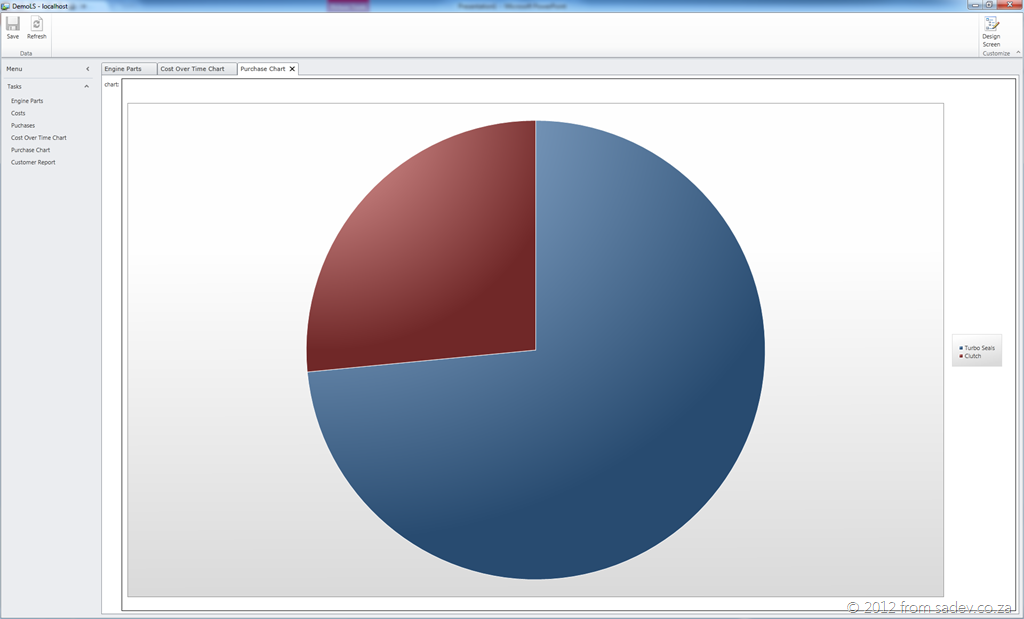
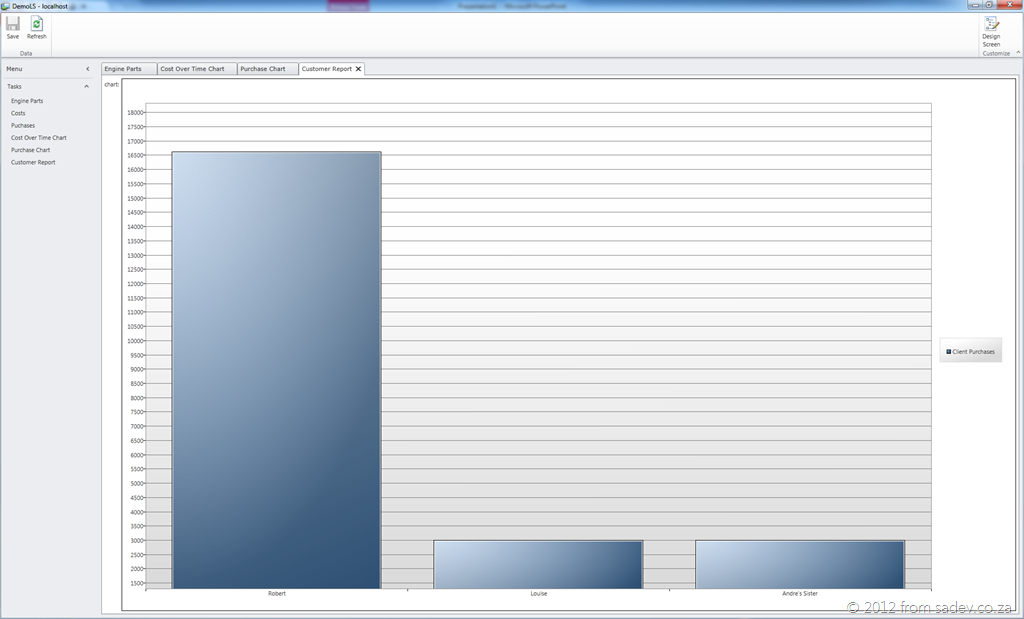
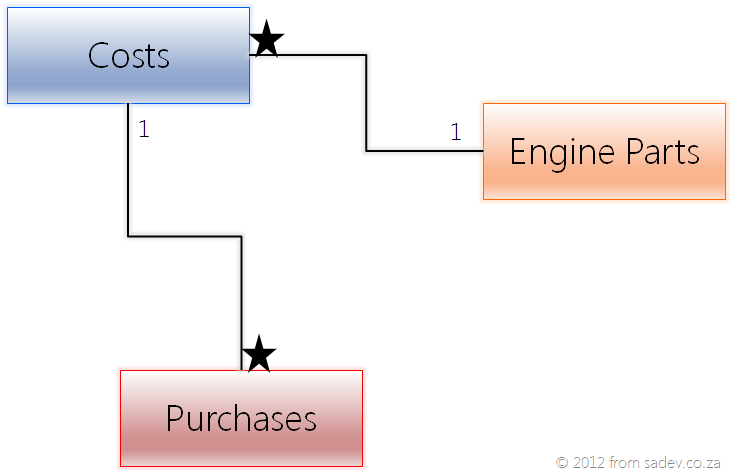
For this tutorial I have a simple structure of engine parts, costs over time and purchases which looks a little like the image below and for I have already created the data structure and UI for adding those in Lightswitch.
Stage 1: Get the toolkit
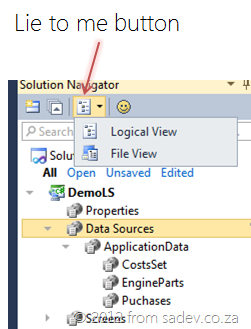
To start off we need to switch out of the Logical View and into the Files View, to do this in Solution Explorer click the “Lie to me button” (that is what I call it) and change the view.
Next right click on the client project and select Manage Nuget Packages. If you do not have Nuget yet, stop, download Nuget from www.Nuget.org and install it and come back.
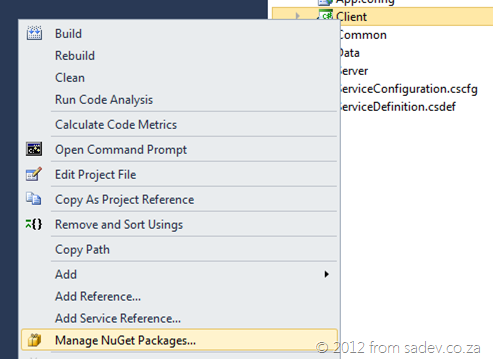
In Nuget search for the silverlight toolkit and install the Data Visualization package. Now unfortunately Lightswitch isn’t too good with Nuget, so really we are using this as a way to get the packages but they are not properly installed as you may expect.

Stage 2: Create the screen and add the control
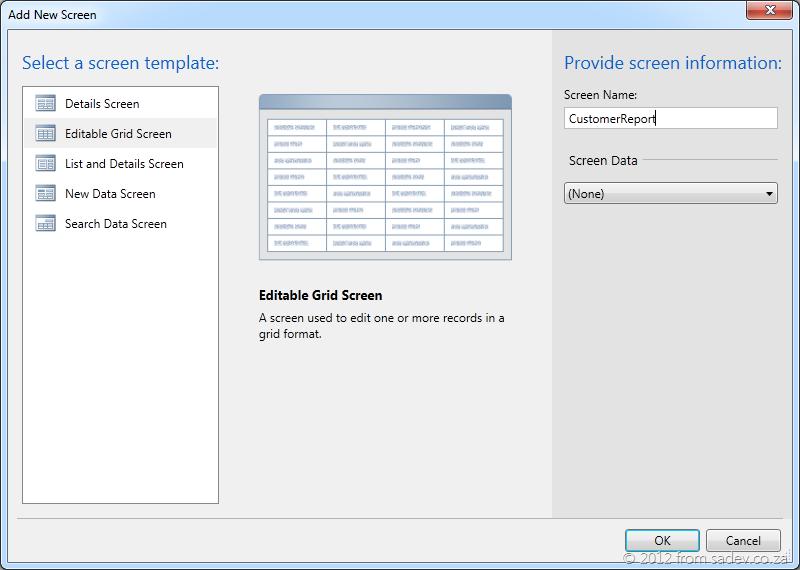
Now switch back to the Logical view and add a new Editable Grid Screen, give it a nice name but do not select any Screen Data.
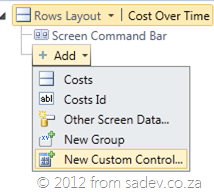
In your new screen, click the add button at the bottom and select New Custom Control. If you do not have that, you have selected the add option for the Screen Command Bar, so make sure the Rows Layout at the top is selected.
Now we need to add the assemblies for the Silverlight Toolkit packages, to do this press the Add Reference button in the Add custom control screen.
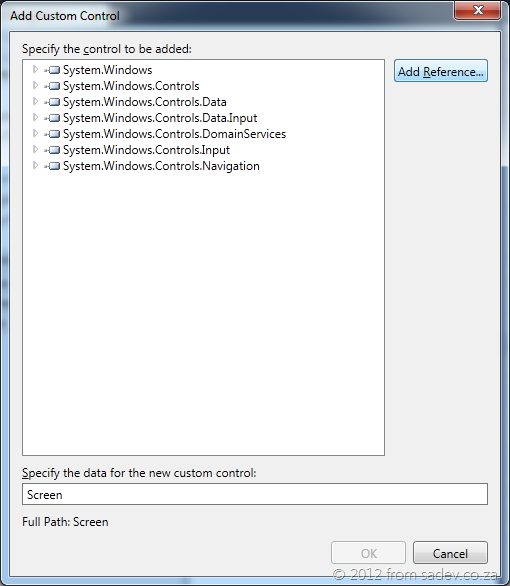
Browse to the packages folder in the root of the Lightswitch project and add the two assemblies. Once done browse the System.Windows.Controls.DataVisualization.Toolkit assembly and go to System.Windows.Controls.DataVisualization.Charting.Chart class and select OK.

Stage 3: Configure the chart control in Lightswitch
The control should now be listed. Next go to the properties and give the chart a name, this is important so name it something you will remember.

Now we change the sizing of the chart control to be Stretch for both Horizontal and Vertical Alignment. This allows the chart to use all the space on the screen!
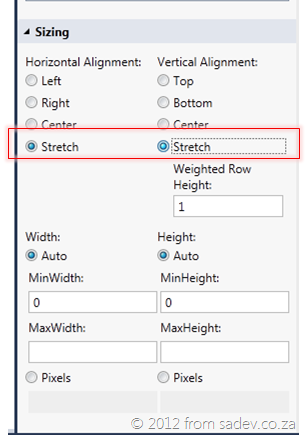
Stage 4: Add some code to get the data and put it in the chart
Now we need to add the code to get the data and render the chart. We do this in the Created event for the screen (to get there, click the Write Code button in the toolbar and select the event).
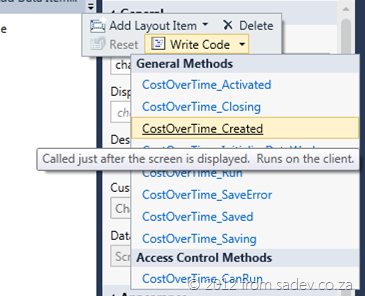
Now we add some code to the event, which does:
- Find the chart control.
- Get the data from the DataWorkspace into a list.
- Set chart to use the data.
partial void CostOverTimeChart_Created()
{
    // Write your code here.
    var chart = this.FindControl("chart");
    chart.ControlAvailable += (s, e) =>
    {
        this.Details.Dispatcher.BeginInvoke(() =>
        {
            var dataPoints = (from Costs c in this.DataWorkspace.ApplicationData.CostsSet
                              group c by c.EnginePart).ToList();

            var chartControl = e.Control as Chart;
            chartControl.Dispatcher.BeginInvoke(() =>
            {
                chartControl.Series.Clear();
                foreach (var group in dataPoints)
                {
                    chartControl.Series.Add(new LineSeries()
                    {

                        Title = group.Key,
                        IndependentValuePath = "PointInTime",
                        DependentValuePath = "Cost",
                        ItemsSource = group
                    });
                }
            });
        });
    };
}
If we dive into the code:
Wrap up
It seems like a lot to do this, and it is. You could make this easier by wrapping this in a custom Lightswitch control which would give you GREAT reuse, but that is a lot of work too. In the long run if you use lots of charts you will save time by building the custom control – but if you need just one or two this is a little quicker and less learning.
Below you will find a link to the sample product I used to create all the charts and it has all the code in it too, if you are looking for it. Make sure you have Nuget installed before you use it!
VS/TFS 11 Announcement Crib Notes
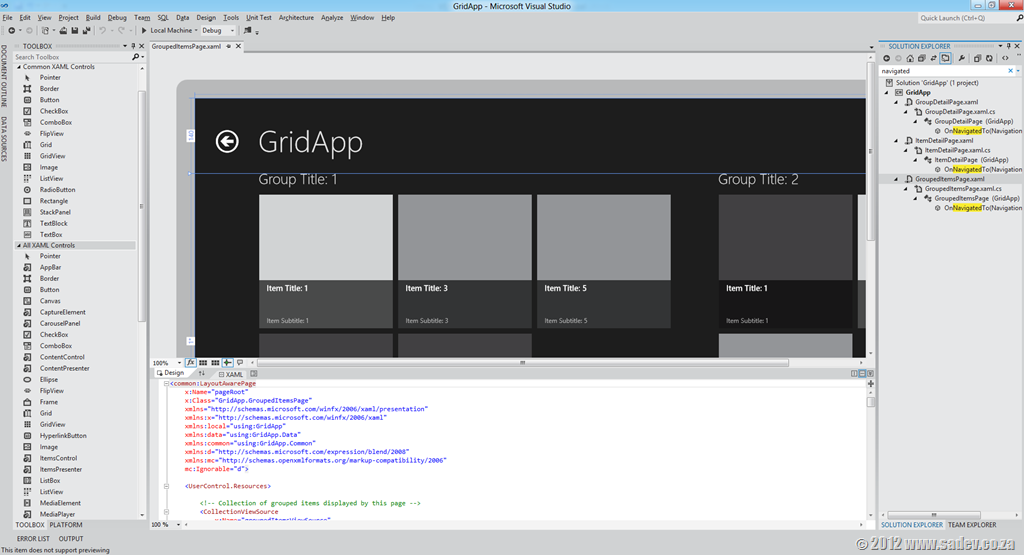 The last few hours have been a buzz of excitement for .NET developers as the covers have been lifted for the next releases of TFS, VS & .NET 4.5 – however there is a problem. There is SO much info wrapped in nice marketing & business talk you will spend hours trying to get through it all, so here are the crib notes. Following each note is a number in braces, this is the number of the source so you can go to it for more info if you wish:
- .NET 4.5, VS 11 & TFS 11 beta’s will be available on the 29th Feb. [1]
- You can use the products in production from beta (technically called a go-live licence) [2]
- Visual Studio 11 has had a UI polish, similar layout but less toolbars by default, less colours (icons are monotone) & a touch of Metro like thinking (white space & typography) [2]
- Five editions (or SKUs) of Visual Studio will ship: Express, Test Pro, Pro, Premium & Ultimate. Same as we have in 2010. [3]
- TFS will have at least two editions, Express (think TFS basic but FREE) and another edition. We may have more than that. [8]
- Visual Studio Professional and up will include Lightswitch! [3]
- The architecture tool diagrams can now be read in professional & premium versions too (in 2010 it was premium only). Creation still requires ultimate. [4]
- IntelliTrace is supported in production (still an ultimate only feature). [4]
- Windows Phone 7 tools included with professional and higher editions of Visual Studio 11. [4]
- Express will have two versions: Windows (WPF, WinRT, etc..) & Web (ASP.NET, MVC etc…). [5]
- There are two themes for Visual Studio: Light (pictured above) & Dark which feels like a Expression Blend style. [6]
- Quick launch is a new search feature allows you to search for any command or option in Visual Studio. [6]
- Search has been added to most used tool windows, like solution explorer. [6]
- ASP.NET MVC 4 has a bunch of evolutionary improvements, nothing to wet your pants on IMHO. [7]
- ASP.NET Web API is a big new feature for both MVC & WebForms for building API’s for the web. Think services like WCF but built for the modern web. [9]
- Visual Studio 11 is a code name – expect a name change by release. [10]
- Workflow hubs in Visual Studio 11 allows you to focus on a task in a single place, rather than have to move around multiple windows. [11]
- Preview tabs allow you to sneak a peek at documents without needing to actually open them. [10]
- C# 5 (yes, it is version 5 of C# that is shipping with .NET 4.5 – who says this is confusing) has support for async. [10]
- New code compare tool & UI that doesn’t suck. [11]
- New code review tool support in TFS & Visual Studio. [12]
- New mock up design tool that ships with Visual Studio/TFS that allows you to build mock user interfaces in Powerpoint. Think Sketchflow without the code or Balsamiq. [13]
- New Visual Studio METRO’d logo [14]:


Want to see some pictures of all of this? http://www.microsoft.com/presspass/presskits/developer/imagegallery.aspx
Sources
- http://blogs.msdn.com/b/somasegar/archive/2012/02/23/the-road-to-visual-studio-11-beta-and-net-4-5-beta.aspx
- http://blogs.msdn.com/b/jasonz/archive/2012/02/23/sneak-preview-of-visual-studio-11-and-net-framework-4-5-beta.aspx
- http://www.microsoft.com/visualstudio/en-us/products/beta-products
- http://www.microsoft.com/visualstudio/en-us/products/features-chart
- http://www.microsoft.com/visualstudio/en-us/products/beta-express
- http://blogs.msdn.com/b/visualstudio/
- http://weblogs.asp.net/scottgu/archive/2012/02/19/asp-net-mvc-4-beta.aspx
- http://blogs.msdn.com/b/bharry/archive/2012/02/23/coming-soon-tfs-express.aspx
- http://weblogs.asp.net/scottgu/archive/2012/02/23/asp-net-web-api-part-1.aspx
- http://www.microsoft.com/presspass/features/2012/feb12/02-23VisualStudioBetaPreview.mspx
- http://www.microsoft.com/presspass/ImageGallery/ImageDetails.mspx?id=2c8135ad-fefd-48c2-888f-83b6987a4e87
- http://www.microsoft.com/presspass/ImageGallery/ImageDetails.mspx?id=2a0b1cf8-9d74-4603-a2d1-03d8ef989a8c
- http://www.microsoft.com/presspass/ImageGallery/ImageDetails.mspx?id=240cbb53-9dd5-4262-b0cc-cdb9a57485d3
- http://www.microsoft.com/presspass/imagegallery/images/products/developer/vs/logo_vs11beta_print.jpg

Silverlight - When does it REALLY end?
 When you ask Microsoft, “Microsoft WTF is going on with Silverlight 5? Is it the last version of Silverlight? Will you support more versions?”, you get given a link to the Silverlight Product Support Lifecycle Page (this has happened more than once to me). This page lists when Microsoft will support Silverlight until, and you will see that for releases 1 through 4 it was between two & three years. For Silverlight 5 it is a DECADE. This implies that this release will be with us for some time, so it is a good bet that it will be the last one. Before I continue this post is about Silverlight on the desktop not Silverlight on the phone which is a different thing all together, I have very different views to Silverlight on the phone.
So what does that REALLY mean to us? Mainstream support will end in 2021. Does that mean browsers will work & Visual Studio will work? Maybe is the real answer. Mainstream support (as defined on the Microsoft website) means
- You can contact Microsoft and ask for help. You may get this for free or pay for it. I’ve used this in the past and gotten hotfixes and general installation help on other products. It is GREAT!
- Security patches.
- The ability to request non-security hotfixes (i.e. you find a bug, you log it with support, you wait a while, you get a fix).
It does not mean tools or browsers will support it! Both are listed on the Silverlight page so they have given us this info too. Tooling is promised for a minimum of 12 months after release which means that Visual Studio & Blend releases 12 months following the release of Silverlight 5 will support it. This means we can expect Visual Studio 11 and Blend 5 to support it. However there is NO promise for further tooling updates, which means that VS 11 & Blend 5 are likely the last releases to support Silverlight. Visual Studio has a trend of 5 years support so expect bugs in tooling to no longer be fixed after that. The other tool we must consider is Lightswitch, which is based on Silverlight. What is it’s life? It is listed as 2017! So do not expect you current Lightswitch projects to continue until then!
In reality those are tools, we can continue to use them long after end of life (as the SQL team forces ANYONE who wants to create reports for SQL 2000 or 2005 will know). The real concern must be out customers and their interface to Silverlight, the browser. The support lifecycle page links to a page with supported browsers and has an interesting note. They will support those browsers until end of mainstream Silverlight support (2021) or until the browsers own support ends WHICH EVER IS SHORTER! So that means if IE ends of life sooner, they get to stop supporting it sooner. So when will that really end? The latest browser on the list is IE 9, so looking that up gives us nothing – it is a component and thus it’s lifecycle is linked to it’s parent product Windows 7 which ends of life in 2015! I am running the Windows 8 beta and I know Silverlight 5 does run on it with Internet Explorer 10, so if we assume that they follow the same lifecycle and this is the last release to support it that means we can expect browser support only until 2017!
So the reality is that your operating system, your browser & your tools all stop supporting it in 2017 – that is the real end of life to me, and that is 5 years away! Sure you can get security hotfixes for another 4 years after that, but really what good are those when your tools, OS & browser can not be fixed. So for me the real end of life is 2017.
Finally let be clear, there is assumptions and estimations based on previous support life cycle numbers. Microsoft could be preparing something and just not communicating it and this could all be wrong, but as Microsoft is not communicating this is all we have to go on anyway. There is another Silverlight, that one powers Windows Phone apps – I view these are two completely separate products (similar features but not the same, but different tools and different requirements) with the same name so my view here does not imply ANYTHING to Windows Phone 7 – I do believe that Silverlight will be with us for much longer.
How different is WinRT really?
Update 29 Feb 2012: There is now a post covering the Consumer Preview/Beta changes: How different is Metro Style (WinRT) development really? The beta post
Note: Before you read this post, it is using the public technical preview of Windows 8, VS 11 & .NET 4.5, so I expect some issues will likely be resolved in later releases. Check the site out for more info!
Recently I have been working on a MVVM framework (it’s the new Hello World project for developers) and I wanted to make sure it worked with WPF, Silverlight & the new hotness: WinRT (or Metro or Windows 8 depending on who you ask). So I started to retrofit the framework and build a demo application at the same time to show it off. I quickly found a bunch of issues that you need to take care of when moving to WinRT.
Namespaces
It has been mentioned since //Build that we will have new namespaces so this should not be a surprise. In my MVVM framework it looks like this:
#if WINRT
    using Windows.UI.Xaml;
    using Windows.UI.Xaml.Controls;
    using Windows.UI.Xaml.Input;
    using Windows.UI.Xaml.Controls.Primitives;
    using Windows.UI.Core;
    using Windows.UI.Xaml.Data;
#else
    using System.Windows;
    using System.Windows.Controls;
    using System.Windows.Input;
    using System.Windows.Controls.Primitives;
    using System.ComponentModel;
#endif
You should be able to spot almost a one to one mapping there, except for the last few, but we will get to those.
Duplication of INotifyPropertyChanged, ICommand & INotifyCollectionChanged
 This issue will affect EVERY developer in WinRT and it is a MASSIVE fail on Microsoft’s part. The INotifyPropertyChanged, ICommand & INotifyCollectionChanged that are used in every XAML based system are not the ones used in WinRT XAML based systems. In fact the framework has TWO of each – one in the old namespace and one in the new namespace. So you will find your databinding just broken with no compiler errors! To solve this you have to switch the namespaces.
ObservableCollection<T> is broken
 Hand in hand with the previous one is that the trusted ObservableCollection<T> no longer works either! It implements the old (wrong INotifyCollectionChanged) and thus all bindings to it are broken. You need to bind to a class that implements IVectorCollection<T>. One problem, the framework doesn’t ship with an implementation! So to bind to collections, you need to build your own collection class or grab a shim (as I chose to).
Proxies & WebRequest
 I used WebRequest in the demo to pull images from Flickr and you know what just worked – proxy settings. The first time ever in .NET! I hope who ever decided that proxies should just work gets an award!
Reflection has added a whole new layer
In non-WinRT we can get all kinds of info on a type directly by working with that type (i.e. Type.GetType). However in WinRT that is not the case! Type.GetType is no longer enough, when you have gotten the type you need to call GetTypeInfo on that to get to all the information on the type. Why this extra layer is here is beyond me.
#if WINRT
                if (control != null && typeof(ButtonBase).GetTypeInfo().IsAssignableFrom(control.GetType().GetTypeInfo()))
#else
#if SILVERLIGHT
                if (control != null && typeof(ButtonBase).IsAssignableFrom(control.GetType()))
#else
                if (control != null && control is ICommandSource)
#endif
#endif
MIA Types & Methods
For a MVVM framework you will have a bit of reflection and so the first thing I noticed is the super handy Types.EmptyTypes is gone! So to have as close to a single code base I am doing this nonsense now 
#if (WINRT)
        private readonly Type[] EmptyTypes = new Type[] { };
#else
        private readonly Type[] EmptyTypes = Type.EmptyTypes;
#endif
There is a fair bit of these missing properties & methods like Type.GetType is missing some of the overloads I have come to love:
#if WINRT
            var viewType = Type.GetType(viewName);
#else
            var viewType = Type.GetType(viewName, true, true);
#endif
Lastly do not expect the trusted methods like GetConstructor, GetMethod or GetProperty to exist. Now we have collections we can iterate over. I admit this is a better option, but some helper methods here would've been useful.
public static MethodInfo GetMethod(this Type type, string methodName, Type[] parameters)
{
    var results = from m in type.GetTypeInfo().DeclaredMethods
                  where m.Name == methodName
                  let methodParameters = m.GetParameters().Select(_ => _.ParameterType).ToArray()
                  where methodParameters.Length == parameters.Length &&
                        !methodParameters.Except(parameters).Any() &&
                        !parameters.Except(methodParameters).Any()
                  select m;

    return results.FirstOrDefault();
}
So be aware when working in reflection be aware that it will work differently.
User Controls must be created on the main thread!
This I do not get at all, but in WPF & Silverlight a background thread can create a user control and pass the content to a Window on the main thread. This is SUPER useful for the creation of content and then when needing popping it into the foreground almost instantly! However WinRT has different ideas, all user controls MUST BE created on the main thread – YUCK!
#if (WINRT)
                Window.Current.Dispatcher.Invoke(CoreDispatcherPriority.High, (s, e) =>
                    {
#endif
                        shell = (IShell)typeof(TShell).GetConstructor(EmptyTypes).Invoke(null);
#if (WINRT)
                    }, this, null);
#endif
Simpson Fail Image from: http://www.thebuzzmedia.com/creator-of-wikipedia-fail-fast-fail-often/
Double face palm image from: http://tvtropes.org/pmwiki/pmwiki.php/Main/FacePalm
Presentation Dump - End 2011: Azure, Windows 8, Lightswitch, Visual Studio Tools, TFS & Roslyn
With 2011 finally done and dusted it is time for the bi-annual presentation dump, where I upload most of the slides I have done in the last six months to share with you! I say most, as some presentations are NDA and those, unfortunately, I can’t share out – but where I can upload slides I do!
In this presentation dump we have:
- Windows Azure Platform Overview: This is a talk I gave at the ImagineCup to faculty members about what Microsoft Azure can offer!
- Windows 8: A brief introduction shortly after the //Build conference to help share what information we had on Windows 8
- Lightswitch: The latest iteration of my Lightswitch talk contains a structure overview before the demo and then goes into detail on the themes and extension model in the product.
- Developer Productivity Tools: A session that looks at FIVE FREE tools for Visual Studio that will assist in the productivity of any Microsoft .NET developer in Visual Studio. Tools covered are fxCop, StyleCop, Pro Power Tools, CodeRush Xpress & Nuget.
- An Introduction to TFS: The target audience for this is someone or company who is using another source control (like VSS) and is thinking about moving to TFS but isn’t sure where to start. This BRIEF introduction tries to provide a high level view that TFS is not just source control it is a LOT of more and thus has a lot more power. It also mentions migration from VSS and provides guidance for success.
- Roslyn: This is an early look at Roslyn
It is definitely a quieter period than most, in terms of number of unique slide shows and I think a lot of that comes out of the information black out from Microsoft prior to //Build, but it was still a very period with me presenting Lightswitch NUMEROUS times and also Tech·Ed Africa where I did four presentations!
You can get all the slides and details by clicking “read more” below!