
Windows Store app Development Snack: Being a sharing target while your app is running
For more posts in this series, see the series index.
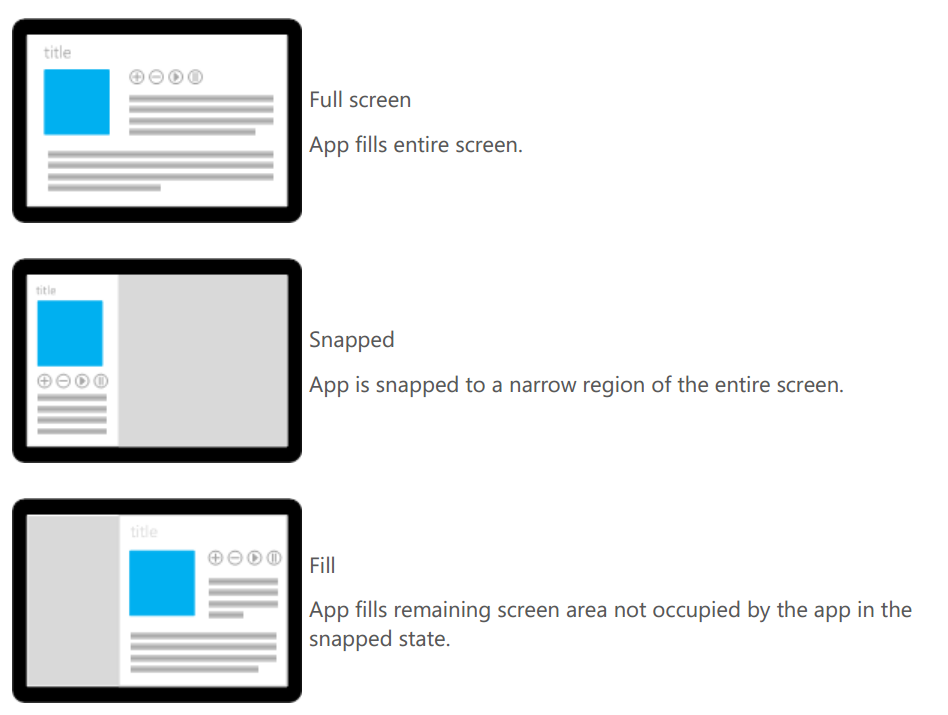 Being a share target seems like a great idea to get people to use your application more, however it does have a fairly complex problem: if I do a share to my application, while my application is running what happens – does it start a new instance or use the existing instance. You may say this can’t happen since Windows 8 doesn’t allow more than one application to run at a time… but you would be wrong.
Snap view in Windows 8 allows for two Metro style applications to run side by side thus allowing two apps to run at the same time. In fact you can run three apps at a time: one snapped, one filled and then you do a share target which launches a third app!
So back to the question, what happens if you app is say running in snapped view and you do a share from the filled app to your app which is currently snapped? The answer is it uses your existing application but from a separate thread.
To test this I put a simple Boolean field into the constructor of my App class which I set to true, then when the OnShareTargetActivated event was raised I checked the value of that Boolean field, and it was true if the app was running!
You should come up with a solution for this (or at least test it) – in my case the OnShareTargetActivated wrote to the application store and then my main UI which used that would poll for changes. I had to do this rather than triggering the UI because the OnShareTargetActivated was launched in a separate thread and trying to trigger caused a cross thread issue (I did try dispatcher fixes but that lead to a variety of COM issues).
Windows Store app development snack: Why is the store showing the wrong currency?
For more posts in this series, see the series index.
 To the right is a screen shot from the Windows 8 Store app on my machine, note the app called Cozy and in particular its price, it is in dollars… and I live in South Africa where we use Rands. :/
The store settings are controlled by the Windows Region settings, so to fix this you need to change the settings, which you can get by search for region:

Once in the region app go to location and change it from United States to South Africa, or where ever you are:

Next time you launch the store (you may need to do a reboot) it will be in the right country! 
Windows Store app Development Snack: A better architecture diagram
For more posts in this series, see the series index.
I have been talking a lot about Windows 8 recently and my slides have been using the architecture images Microsoft releases at Build 2011 & that awesome one Doug Seven created. However I have still found a lot of discussion exists even with those and they are showing their age.
I have tried to create a new one recently that addresses those issue:
- Age: DirectX can be used by VB/C# in addition to C++ now.
- Age: How does Windows Phone 8 fit the picture – note this may change, it is based on my assumptions and half info we have gotten.
- Discussion: Is WinJS = WinRT?
- Discussion: is .NET = WinRT?
- Discussion: Can I use my own JavaScript libraries like jQuery?
- Discussion: Can I use WinJS on the web?
- Discussion: Can I build desktop apps on Windows 8?
- Discussion: Can desktop apps run on Windows 8 ARM CPU's.
- Discussion: How does the language projection fit in?
Clearly this wouldn’t work in a single image – so I have created a slide deck that has a great overview image and also has build up experiences where step-by-step it builds the image with information and hopefully during that answers all the questions.
Where do I start to learn Windows 8?
I have been asked at the talks I do, where can I go to learn Windows 8? What material is available? There is a LOT of content available for Windows 8. For me personally I learnt initially from the Windows 8 Camp in a box and building my own test apps. However the ever amazing Bruce Nicholson provided me with a fantastic list recently (so go thank him):
- Designing Apps with Metro Principles and Windows Personality: http://channel9.msdn.com/Events/TechEd/NorthAmerica/2012/DEV351
- Building Windows 8 Metro style UIs: http://channel9.msdn.com/Events/TechEd/NorthAmerica/2012/DEV354
- Building Metro style Apps with XAML: What .NET Developers Need to Know: http://channel9.msdn.com/Events/TechEd/NorthAmerica/2012/DEV353
- Windows 8 Touch Language: Covered in Build 2011 session “Designing Metro style apps that are touch-optimized” (http://channel9.msdn.com/events/BUILD/BUILD2011/APP-391T) , and MSDN deign guidance document “Touch interaction design (Metro style apps)” (http://msdn.microsoft.com/en-US/library/windows/apps/hh465415)
- Declaring capabilities: Covered in Build 2011 session “How to declare your app’s capabilities” (http://channel9.msdn.com/Events/BUILD/BUILD2011/APP-398T)
- AppBar: Covered in MSDN design guidance document “Commanding design for Metro style apps” (http://msdn.microsoft.com/en-us/library/windows/apps/hh761499.aspx), and
- Search - Covered in Teched 2012 session “Integrating with Windows 8 Experiences” (http://channel9.msdn.com/Events/TechEd/NorthAmerica/2012/DEV356 )
- Live tiles – Covered in Webcast “Bring Your Windows 8 Metro Style Apps to Life with Tiles and Notifications” (http://channel9.msdn.com/Events/Windows-Camp/MSDN-Webcast-Series-Building-Windows-8-Metro-Style-Apps/Bring-Your-Windows-8-Metro-Style-Apps-to-Life-with-Tiles-and-Notifications)
- Async programming in C# 5.0 – Covered in Teched 2012 session “Async Made Simple in Windows 8, with Visual C# and Visual Basic” (http://channel9.msdn.com/Events/TechEd/NorthAmerica/2012/DEV332)
- HTML5/JS discussion – Covered in Teched 2012 sessions “Building Metro style Apps with HTML and JavaScript” (http://channel9.msdn.com/Events/TechEd/NorthAmerica/2012/DEV366)
- “A Lap Around Microsoft Expression Blend for HTML” (http://channel9.msdn.com/Events/TechEd/NorthAmerica/2012/DEV368)
- Networking – MSDN documentation: “Networking (Metro style apps)” (http://msdn.microsoft.com/en-us/library/windows/apps/xaml/hh452751(v=win.10).aspx)
- External data – MSDN article: “Accessing data and files (Metro style apps using C#/VB/C++ and XAML)” (http://msdn.microsoft.com/en-us/library/windows/apps/xaml/hh758319.aspx)
- Settings – MSDN guidance documents “Guidelines for app settings (Metro style apps)” (http://msdn.microsoft.com/en-us/library/windows/apps/hh770544.aspx), and “Managing application data (Metro style apps using C#/VB/C++ and XAML)” (http://msdn.microsoft.com/en-US/library/windows/apps/xaml/Hh465099(v=win.10) )
- Sharing – Content is covered in Teched 2012 session “Integrating with Windows 8 Experiences” (http://channel9.msdn.com/Events/TechEd/NorthAmerica/2012/DEV356)
- PLM – MSDN guidance documents “Launching, resuming, and multitasking (Metro style apps using C#/VB/C++ and XAML)” (http://msdn.microsoft.com/en-us/library/windows/apps/xaml/Hh770837(v=win.10).aspx)
- SDK sample pack: http://code.msdn.microsoft.com/windowsapps/Windows-8-Modern-Style-App-Samples
- Guidance for porting IOS and Web applications
- Design case study: iPad to Metro style app: http://msdn.microsoft.com/en-US/library/windows/apps/hh868262
- Design case study: Website to Metro style app: http://msdn.microsoft.com/en-US/library/windows/apps/hh868264
- Deploying apps in the enterprise without using the Windows Store (how to) http://technet.microsoft.com/en-us/library/hh832040#BKMK_SideLoad
- Printing from a Metro Style app – Build session “Building Metro style apps that print” (http://channel9.msdn.com/events/BUILD/BUILD2011/PLAT-679T)
Windows 8 Boot Camp: Johannesburg 24 May
 Yesterday Rudi Grobler & I had awesome fun with a full room of amazing people who took time off work to attend a full day of free Windows 8 training. The audience was amazing, breaking a lot of my expectations of how audiences react at free events, which really honoured Rudi & I to have most people stay to the very end of the day.

For those people who attended the training, or those who didn’t but want the content too:
- You can get the slides: http://bit.ly/win8-slides
- You can get videos from Build on the topics we discussed: http://bit.ly/win8-videos
- The demo’s I built are available to download from below.
JSinSA 2012

 This past weekend was the ever fantastic JavaScript in South Africa (JSinSA) conference. This year focus was on HTML 5, JavaScript & CSS 3 – easily some of the MOST important topics for developers regardless of platform to know about.
It was it’s second year and while I was very lucky to go to it as an attendee in the first year, this year I was even more lucky to be a presenter at the conference. I was also very lucky to present on a topic I am passionate about: Windows 8.
The talk provided an introduction to Windows 8 & how development works, and in the 45mins I was done, we built an application which could take a photo from a web cam and send it to Twitter (the actual photo is to the right).
You can get the slides and bits from the talk below.
Windows 8 for the .NET developer
Last night I presented on Windows 8 for the .NET developer at the fantastic Developer User Group! We had a bumper crowd there which was great and really had some interesting discussions during and after the talk. Thank you to all that attended!
For those looking for the slides, demo script and demo bits they are below!
Windows 8 Bootcamp
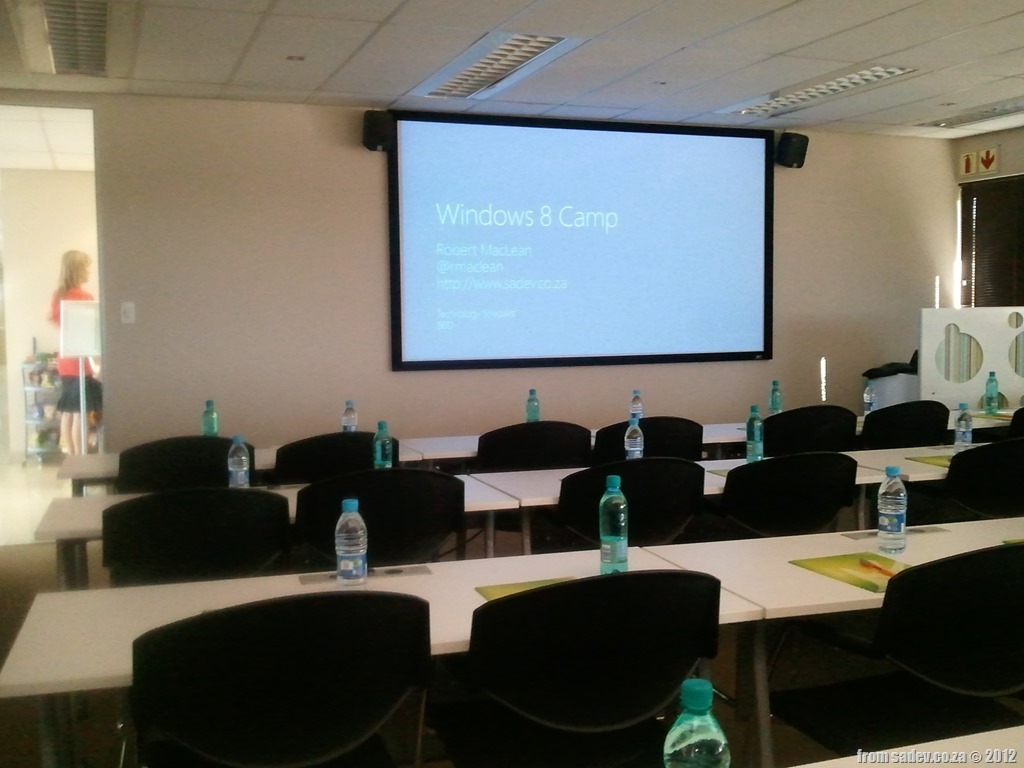
 Last week (14th March 2012, to be exact) I had a great opportunity to travel to Cape Town and present the first ever Windows 8 Bootcamp there! (I missed the first in South Africa by two days, that was presented in Jo’burg by Rudi Grobler).
It was a small event, but it was a great day of learning and sharing and what a lovely place it was to present, as you can see from the photos below!
One of the requests from those who attended the event was the demos & slides – however there is a snag, Microsoft owns the slides and they are not ready for them to be publically shared  That said the demo bits are below, so hopefully that will keep you sorted until the slides arrive.

Upgrading Visual Studio "11" Developer Preview Metro Projects to Visual Studio "11" Beta Metro Projects
 If you created Metro style (WinRT) projects in Visual Studio “11” developer preview (alpha) and you try to open them up in the beta you will have a few load issues. These are ones I have found in my apps so it is not exhaustive, but seems like the most common.
Projects will not load
The projects themselves will not load with the following error: The imported project "C:\Program Files (x86)\MSBuild\Microsoft\WindowsXaml\v1.0\Microsoft.Windows.UI.Xaml.CSharp.targets" was not found. Confirm that the path in the <Import> declaration is correct, and that the file exists on disk.
The solution to this is to open the project file and navigate to the <Import> node and change the path from v1.0 to v11.0 (see the highlighted extra 1 in the image below that is needed):

Compiler Directive
If you used the compiler directive WINRT that has been changed to NETFX_CORE so you will need to update your code.
Package fails to build
The package fails to build/deploy and complains about an InitialRotationPreference attribute. To solve this open the Package.appxmanifest file and find the <VisualElements> node and you should find an line similar to this:
<VisualElements DisplayName="AtomicMVVM Metro Style App Demo" Logo="Images\Logo.png" SmallLogo="Images\SmallLogo.png" Description="AtomicMVVM Metro Style App Demo" ForegroundText="light" BackgroundColor="#000000" InitialRotationPreference="portrait">
What you need to do is remove the InitialRotationPreference attribute from the end, so it ends like this:
<VisualElements DisplayName="AtomicMVVM Metro Style App Demo" Logo="Images\Logo.png" SmallLogo="Images\SmallLogo.png" Description="AtomicMVVM Metro Style App Demo" ForegroundText="light" BackgroundColor="#000000">
Big load failure image from: http://www.hostedfile.com/pictures/76451/big-load-failure.html
How different is Metro Style (WinRT) development really? The beta post
 Note: Before you read this post, it is using the public consumer preview (beta) of Windows 8, VS 11 & .NET 4.5, so I expect some issues will likely be resolved in later releases. Check the site out for more info!
With the beta of Win8, VS 11 & .NET 4.5 now out I thought I should post again (first post about this can be found here – recommended reading to see how it has improved) how it has improved or changed since the alpha. This is not meant to be an exhaustive list, it is a list of the most common things (where most common is what I use, because I am pretty common  )
)
Namespaces
Namespaces have been polished and there is a much better alignment of the new awesomeness to the old so this is getting much better.
#if NETFX_CORE
    using Windows.UI.Xaml.Controls;
    using Windows.UI.Xaml;
    using Windows.UI.Core;
    using Windows.UI.Xaml.Controls.Primitives;
#else
    using System.Windows.Controls;
    using System.Windows.Controls.Primitives;
#endif
Duplication of INotifyPropertyChanged, ICommand & INotifyCollectionChanged is SOLVED!
I mentioned about the EPIC FAIL of the duplication of core interfaces – that has been solved! 
ObservableCollection<T> is broken is SOLVED!
The double facepalm that was breaking ObservableCollection<T> has also been solved – so this means your Metro style apps are more like your WPF & Silverlight apps than ever before.
User Controls must be created on the main thread is SOLVED!
I did not get a stupid behaviour where a user control had to be created on the main thread, and thankfully that has been solved! You can now create user controls on other threads!
IValueConverter has been changed
Previously the Convert & ConvertBack methods second parameter was a string, now it has been changed to a Type. This is a good move as it allows for better compares, but means any IValueConverters from alpha will be broken and it is a simple change:
//Before broken
public object Convert(object value, string typeName, object parameter, string language)

//After changing type of second parameter = working
public object Convert(object value, Type typeName, object parameter, string language)
Good work image from http://bloggers.com/posts/happy-developer-37379