Tweaking the Find Results window in Visual Studio 2010


Visual Studio is filled with goodness and happiness, and a lot of that is available for tweaking—so you can get the maximum goodness via the Tool → Options menu. One of the things that doesn’t have any visible options is the formatting of how the results are displayed:
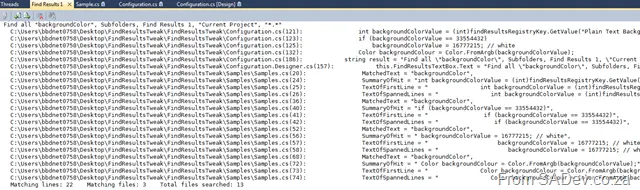
The problem, as indicated above, is a ton of white space, long file paths, no column information, etc. Wouldn’t it be great to tweak how that can be displayed? Thankfully, Sara Ford found a way to do exactly that via the registry. So you could tweak it to actually display the way you want it!
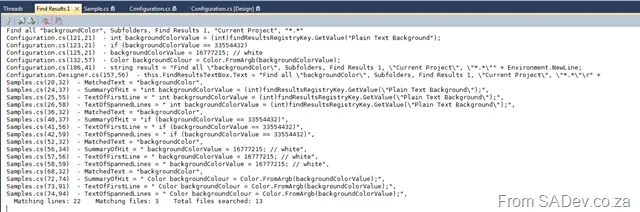
In my tweaked version, it’s far more concise—with just the filename (no more path), less whitespace (since I’m showing only a summary of results), and I also included the column info. The problem is that editing the registry isn’t user-friendly. 😒 This gave me the chance to write my first Visual Studio add-in, which gives you an option inside Visual Studio to set it.
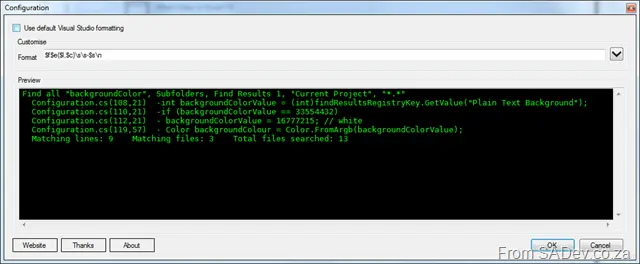
What’s really nice is that while you configure the format, the preview window updates in real time and shows you how it looks—so you don’t get any surprises when you save it! If you’d like to find out more about it, you can visit the site on CodePlex at http://findresultstweak.codeplex.com/.