Like anyone with a brain, I want mine to be as empty as possible of important things so I can fill it with memes and TV quotes. To help that process, I put my passwords into a password manager—mostly for security, but also for convenience. 1Password, like others, supports running an SSH agent, which is amazing when you have multiple accounts on GitHub and GitLab that all need SSH. It provides great portability, and for most things, it just works. This does mean having something like this in my ssh config file so I can reference each account with a different name:
Host personalgh
    HostName github.com
    User git
    IdentityFile ~/.ssh/rmaclean_github.pub
    IdentitiesOnly yes

Host clientAgh
    HostName github.com
    User git
    IdentityFile ~/.ssh/clientA_github.pub
    IdentitiesOnly yes
Then, when I git clone, I don’t use git@github.com:rmaclean/developmentEnvironment.git instead, I use personalgh:rmaclean/developmentEnvironment.git. This instructs Git to use the specific profile in the SSH config. This works great, except if you use Git LFS (Large File Storage). Over the last 14 months, I’ve used LFS a lot since one of my clients is a game developer, and LFS is essential for all the binary assets.
Since LFS uses a separate process, it makes assumptions about the hostname and thinks the SSH profile name is the hostname. And you get an error like this:
Cloning into 'demo'...
remote: Enumerating objects: 4108, done.
remote: Counting objects: 100% (234/234), done.
remote: Compressing objects: 100% (127/127), done.
remote: Total 4108 (delta 140), reused 149 (delta 103), pack-reused 3874 (from 3)
Receiving objects: 100% (4108/4108), 1.62 MiB | 1.46 MiB/s, done.
Resolving deltas: 100% (2524/2524), done.
Downloading public/assets/audio/music/Arcade_LoopNew.mp3 (2.4 MB)
Error downloading object: public/assets/audio/music/Arcade_LoopNew.mp3 (425014c):
Smudge error: Error downloading public/assets/audio/music/Arcade_LoopNew.mp3 (425014c3f342e099e5c041b875d440e9547ef4fb2a725d41bb81992ad9f37ddd):
batch request: ssh: Could not resolve hostname clientA: nodename nor servname provided, or not known: exit status 255
Errors logged to '/private/tmp/demo/.git/lfs/logs/20250826T090610.648994.log'.
Use `git lfs logs last` to view the log.
error: external filter 'git-lfs filter-process' failed
fatal: public/assets/audio/music/Arcade_LoopNew.mp3: smudge filter lfs failed
warning: Clone succeeded, but checkout failed. You can inspect what was checked out with 'git status' and retry with 'git restore --source=HEAD :/'
To fix this, you must use the standard git@github.com: host structure. But since you also need to pass in the correct SSH key, you can do that with a temporary config setting: core.sshCommand. When cloning, you can specify the command directly:
git -c core.sshCommand="ssh -i ~/.ssh/clientA_github.pub" clone git@github.com:client/demo.git
After successfully cloning the repository, any subsequent pushes or pulls will still fail. This is because the repository isn’t yet configured to use the right key. The git clone command simply added a parameter for that single operation—it didn’t change the repository’s configuration.
To fix this, you need to set the configuration correctly after the clone. Switch into the cloned folder and run this command:
git config core.sshCommand "ssh -i ~/.ssh/clientA_github.pub"
This command sets the core.sshCommand for the repository, ensuring that it always uses the correct key. Now it will just work.
This post is for that one other person who's losing their mind over a bizarre issue: lowercase environment variables with dots in their names not showing up in one environment, but working elsewhere. The client's request was simple: configure all environment variables with a naming convention like my.app.variable. Everything I knew suggested this was impossible—environment variables typically follow a UPPERCASE_SNAKE_CASE convention and don’t play well with special characters like dots. Yet, in their environment, it works. ## The Investigation
To get to the bottom of this, I created a minimal, reproducible example using a simple Java application that reads an environment with the k8s and Dockerfile needed to run it. I hosted the code on GitHub for anyone to see and confirm: it worked. I could even sh into the container and confirm the variables were present and correctly formatted using the env command. The puzzle deepened. The environment variables were definitely there and readable, so why couldn’t my real application see them?
The Unexpected Culprit
After a lot of debugging, I finally found the problem: the Docker base image. In the client’s working environment and my local test (by coincidence), we were running on eclipse-temurin:21-jre-alpine. The actual project code, however, was using eclipse-temurin:21-jre. The difference seems subtle, but it was critical. The Alpine version, being a minimal Linux distribution, likely handles environment variable parsing differently or has a different shell configuration (via the entrypoint being bash) that allows these non-standard variable names to be passed and read correctly. The standard image, based on a different underlying OS (likely Debian or similar), does not.
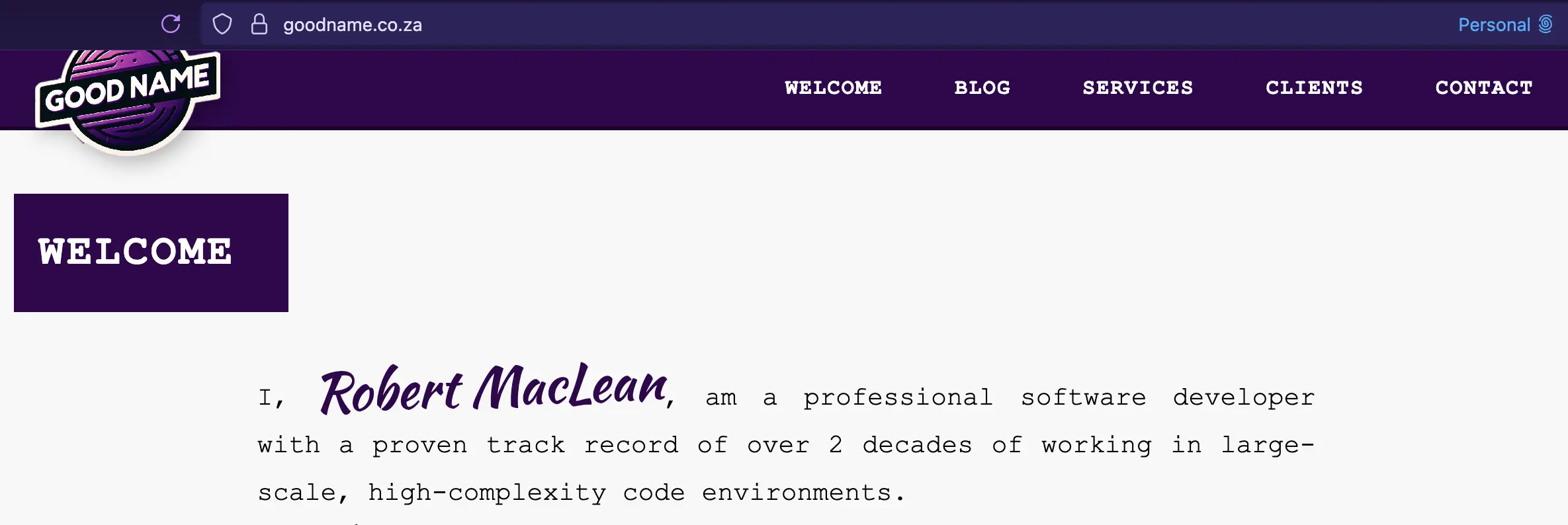 I have been using DenoDeploy for my experiments and toys recently and have been wowed by it. Recently, they announced that their version 2 is coming, and you can try it out in early access now: DenoDeploy.
I wanted to try this and felt that after a year, it was a good time to rebuild the website for my sole proprietorship, https://www.goodname.co.za. Last year, when I launched it, I hosted it on my main (expensive) hosting provider where I run this and used Drupal as a system for it—all because it was quick to get going. In a year, I did no updates and spent way too much time updating dependencies I didn’t need. So why not try something new with DenoDeploy in early access? And what I couldn’t do before? Run static HTML content! Yeah, DenoDeploy now lets that work, and since I can put together HTML/CSS/JS quickly, it makes it really solid.
It also means I can use my normal dev tools and push updates via GitHub. I don’t have much more to say because DenoDeploy EA just worked—it was easy to configure (just connect to GitHub), link the domain via DNS, and BOOM! It is running. It is amazing. I am very excited to see what’s coming from them in the future.
If you are looking for a place to run TypeScript, JavaScript, or static content, you owe it to yourself (and your wallet) to check it out.
When it comes to spreadsheets, Excel kicks ass—like it is massively more powerful than anything else out there—but I have recently had to pull Google Calendar info into a spreadsheet. Rather than manual capture, I found that Sheets from Google with App Script is really powerful thanks to the unified Google experience. To bring in the info, I followed these steps:
Create a new spreadsheet (I used the awesome https://sheets.new URL to do that).
In the spreadsheet, add your start and end dates for the range you want to import. I put start in A1 and end in B1.
Click Extensions → Apps Script.
In the Code.gs file, drop the following code in:
const START_DATE_CELL = 'A1';
const END_DATE_CELL = 'B1';
const HEADER_ROW = 3;
const HEADER_COL = 2;
const DATA_START_ROW = HEADER_ROW + 1;
const NUM_COLS = 3;
function calendar_update() {
var mycal = Session.getActiveUser().getEmail();
var cal = CalendarApp.getCalendarById(mycal);
var sheet = SpreadsheetApp.getActiveSheet();
var currentRow = DATA_START_ROW;
while (true) {
var checkRange = sheet.getRange(currentRow, HEADER_COL, 1, NUM_COLS);
var values = checkRange.getValues()[0];
var hasData = values.some(cell => cell !== '' && cell !== null && cell !== undefined);
if (!hasData) { break; }
checkRange.clearContent();
currentRow++;
}
var events = cal.getEvents(
sheet.getRange(START_DATE_CELL).getValue(),
sheet.getRange(END_DATE_CELL).getValue(),
{ search: '-project123' }
);
var header = [['Date', 'Event Title', 'Duration']];
var range = sheet.getRange(HEADER_ROW, HEADER_COL, 1, NUM_COLS);
range.setValues(header);
var rowIndex = DATA_START_ROW;
for (const event of events) {
if (event.getTitle() === 'Busy' || event.getTitle() === 'WFH' || event.getMyStatus() === CalendarApp.GuestStatus.NO) {
continue;
}
var duration = (event.getEndTime() - event.getStartTime()) / 3600000;
var details = [[event.getStartTime(), event.getTitle(), duration]];
var range = sheet.getRange(rowIndex, HEADER_COL, 1, 3);
range.setValues(details);
rowIndex++;
}
}
Set the config at the top of the script and hit Save:
const START_DATE_CELL = 'A1';
const END_DATE_CELL = 'B1';
const HEADER_ROW = 3;
const HEADER_COL = 1;
Save and run. You will be asked for auth—this is a one-time approval.
The content will be in the sheet now! But let’s make it easy to update.
Go to Insert → Drawing, and draw a button or icon, then hit Insert.
On the button, click the three dots (⋮) and select Assign Script.
For Which script do you want to assign?, put in calendar_update and click OK.
Now you can click that button at any time, and it will update.
As a final awesome trick, you may wish to convert something like 0.25 to a human-readable 15 minutes. I use the formula:
=TEXT(A1,"[h]\h\o\u\r\s m\m\i\n\u\t\e\s")

Today I want to share my favourite Git aliases that I’ve built up over the years. If you haven’t heard of a Git alias, it’s basically a way to add your own custom commands to Git. Think of it as a personal shortcut for frequently used Git operations (you can check out the official docs here for the technical deep dive).
You could add these to your shell directly, and they’d work pretty similarly. But for me, that requirement of still having to type git first really keeps them nicely ring-fenced. It helps keep my mental space focused just on Git commands. Plus, since I use these constantly, they’re all single-letter commands. If you’re doing everything on the shell, you might run out of good single letters (depending on your shell, you’ve only got so many!). Here, I still have a limit, but it’s focused specifically on Git commands, so I’m not going to hit it anytime soon.
My Go-To: git u (Update Branch)
First up is u. This one is for updating my branch. Most days, before I even start coding, I want to update my feature branch to main. I also like to do a bit of clean-up to keep Git performat and my local repo tidy. Man, this used to be a bunch of things I had to remember:
- Switch to
main—except it might also be master, release, or staging. I bounce between multiple teams and clients, and remembering which is which each time can be tiring. - Run
fetch --prune to clean up any local branches that no longer exist on the remote. Keeps things neat! - Pull the latest changes into my local
main. - Run
maintenance for performance goodness. - Switch back to my feature branch and merge those fresh changes across.
That’s a lot of individual commands, right? Today, that’s just git u.
Internally, the alias looks like this:
alias.u=!git switch $(git symbolic-ref refs/remotes/origin/HEAD | sed 's@^refs/remotes/origin/@@') && git fetch --prune && git pull && git maintenance run && git switch - && git merge $(git symbolic-ref refs/remotes/origin/HEAD | sed 's@^refs/remotes/origin/@@')
Now, where this still messes up for me is on one client where their main is actually production, but their workflow dictates pulling from staging… so it’s a bit weird. And then there’s the classic rebase vs. merge debate. I landed on merge for this alias since it’s often safer, but I do wonder if I could build a smarter system to try rebase, and if that has issues, then switch to merge. Food for thought!
Branching Out with git n (New Branch)
Next up is n. This one is for creating a new branch. Take everything from the u command above, except for the last step (merging back). Instead, I want to type in a new branch name, and it creates that new branch for me. That was super easy to integrate using read, and the final alias looks like this:
alias.n=!git switch $(git symbolic-ref refs/remotes/origin/HEAD | sed 's@^refs/remotes/origin/@@') && git fetch --prune && git pull && git maintenance run && read -p 'New branch name: ' branch && git switch -c $branch
And there you have it! These two aliases have saved me countless keystrokes and mental gymnastics over the years.
Tax is complicated, and we don’t even have lunatic tariffs to worry about. Often people talk about the fact that we pay up to 45% tax in South Africa, but that is seldom true—in fact, mathematically it will never be true because tax is something called an asymptote. Even if you round up, you have to earn over R32.1 million a month to get to 45%—something no one (or very few people) will get close to.
I wanted to see and play with this, so I built taxreality.sadev.co.za this evening to play with the formula and visualize it. 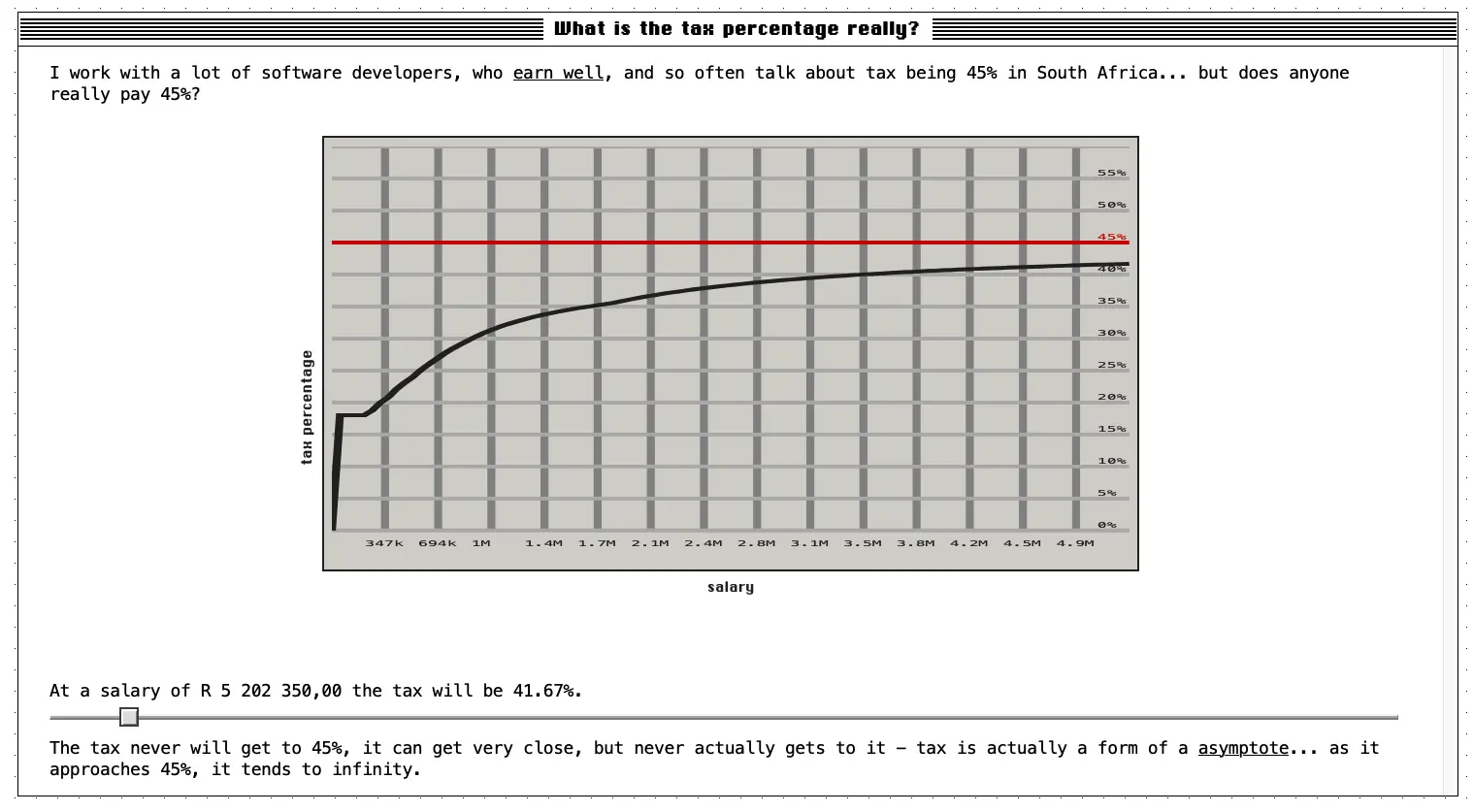 Like with my last project, it is built with Deno, Fresh and Deploy. In addition, I also made use of System.css for some of the styling and RealFaviconGenerator, which is an amazing tool—it let me use an SVG and have it change to work with light and dark mode!
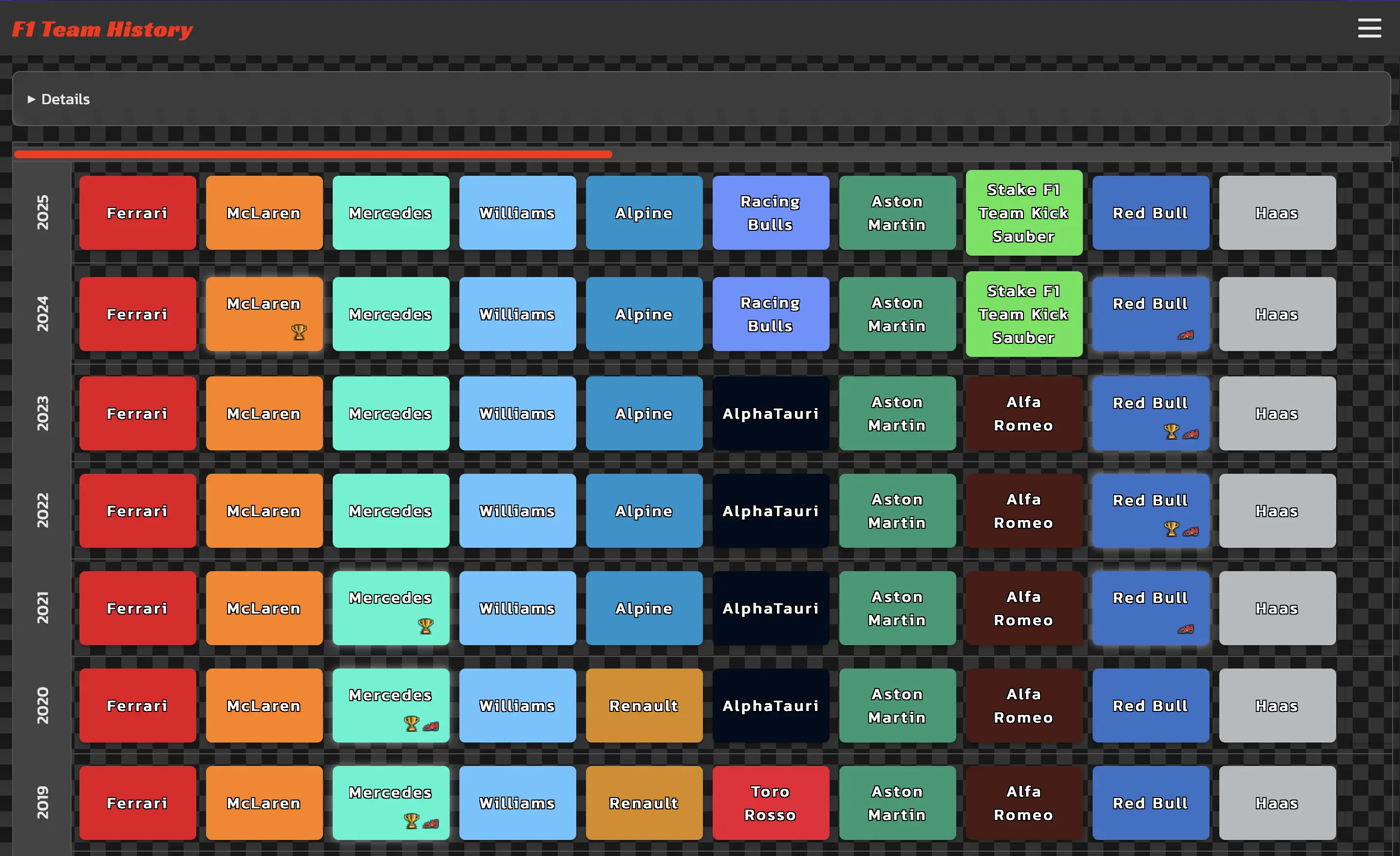 The project is up at: Yesterday was a public/bank holiday in South Africa, and that gave me a chance to try building something from scratch in a day... but I also wanted to push some skills by doing more work with Deno. Initially thought about building with Next.js, but I use that often, so thought I'd try Fresh (the framework from Deno), which naturally led to using Deploy, the hosting that Deno also offers.
What to build? How about a simple website showing the evolution of Formula 1 teams in time for the Grand Prix this weekend, so I can see what each team was called over time?
Building with Deno was, as always, painless—native TypeScript support and the full toolchain were great. The only issue I had was that I wanted trailing commas in my JSONC data, but the formatter wouldn't let that be (so a very minor quibble).
Fresh was uneventful—honestly, if you know Next.js, getting up and running takes little extra time, and the structuring makes so much sense.
Deploy was an absolute highlight, though—an amazingly easy deployment from GitHub service with a very generous free tier. I’m now thinking of how many ways I can make use of that.
From start to finish, it took about half a day—and this is using new technologies. This is an amazing stack for quick and professional development.
Two other different aspects I used:
When I started, I hadn’t planned on using Deploy, which has a free KV available. I likely wouldn’t have used it if I had planned ahead, but since I hadn’t, I went with a static JSONC file and parsed it with JSONC-Parser. I absolutely love JSONC over plain JSON—the sooner we all move to it, the better.
I used no component library—everything is "handcrafted" HTML and CSS. Not even something like SASS. I still think there’s a use for component libraries in bigger systems, but modern HTML & CSS are so powerful that it’s wonderful to keep the size down (the whole website is 100KB).
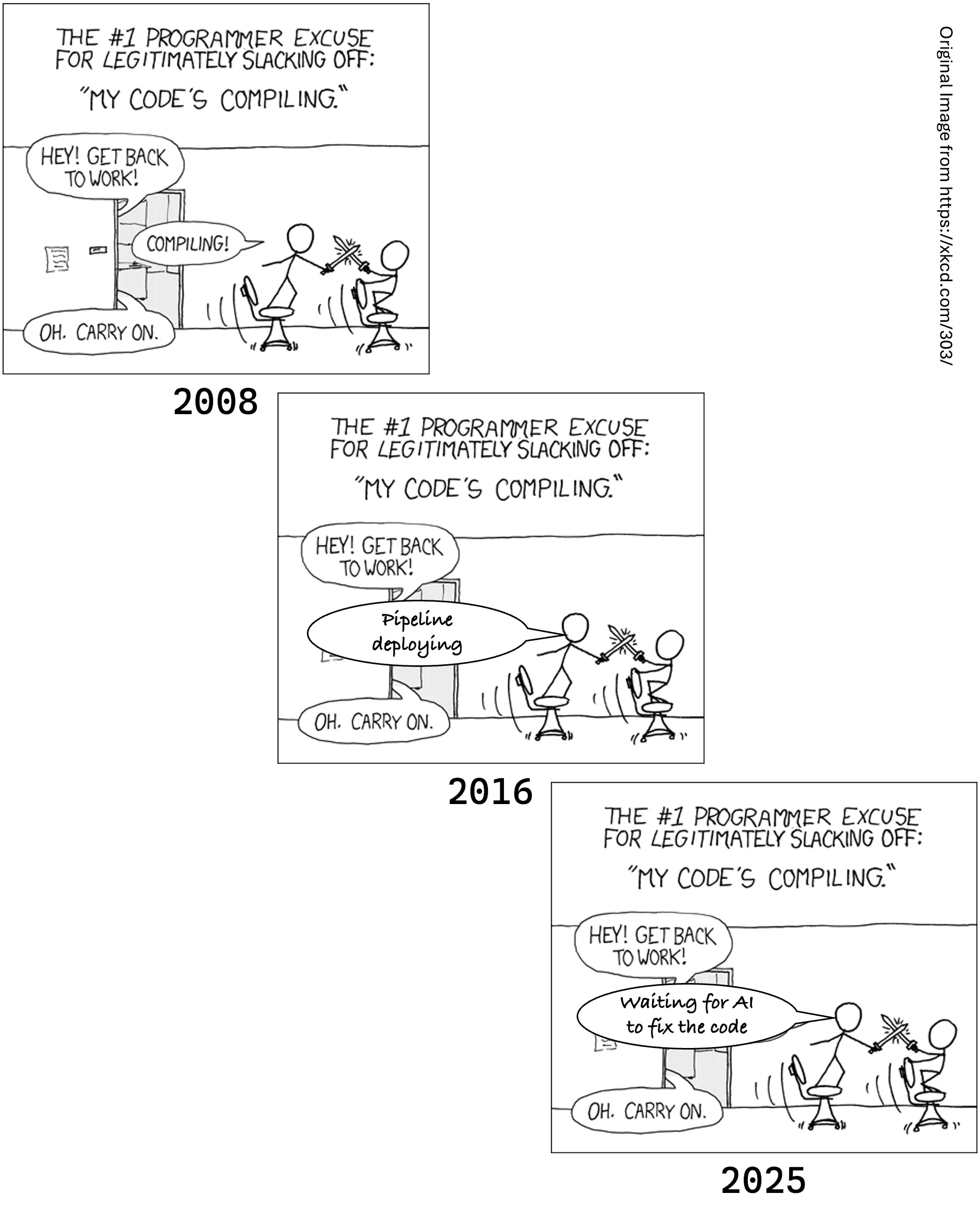 "The more things change... the more they stay the same")
Today I presented at DevFest—which was a great experience! A bunch of people wanted my slides/notes from my talk, so they’re available below.
CLI Stack
Multiple people also asked about my CLI experience and what it is, since it seems so powerful. My CLI stack is as follows:
- The terminal is Warp—I’ve written about it on my Newsletter
- The shell I use remains Fish, which is easily the best switch if you’re coming to more shells from Windows—that’s how I got to it, and after almost a decade, I still love it
- The prompt I use is Starship. Warp has a lot of options, but Starship can respond to your machine and the folder to give even more power. Plus mine has the Pansexual Flag colors, which brings me so much joy.
- I make use of Fzy for
CD autocompletion.

This is the first in the second act of the trio of sections this series has, and it focuses on what it is like to be a software developer. When I first wrote this, I did it for a university talk and thought the advice on what it really is like to be a software developer might help the students understand what they would find and get successful faster. Since I have been consulting and speaking to many people, I have realized that there are developers at every level who do not know these things—and some, especially very talented and senior, feel they are there to sit alone and churn out "perfect code"... and they are wrong.
If I were to distil what software development is about to a word, it is tradeoffs. We are always making tradeoffs, and in terms of what those trade-offs are, it is just three things: Capacity, Time, and Features. Very simply, if you want to change one, you need to change at least one more of them—and sometimes two others. I have always liked visualizing this as a semi-rigid triangle, with each side representing one of these.
Time
The time aspect is probably the easiest to think about: it is how long it will take. This can be viewed as the whole project, but also down to individual tasks.
Capacity
This used to be called People and Resources, but we should always remember that people are not resources. When we think of this as People or Resources, we miss the nuance of this. When working with this triangle and talking about the costs of a project, capacity often aligns nicely with people—so if you want to lower the costs, this is an obvious one. That means you would need to increase time (i.e., how long it will take) or decrease features.
Capacity, though, is not just about costs. For example, if you have a single developer, you might feel you can increase capacity... but it can be changed. Are you context-switching a lot? That has an impact on capacity. Are they doing a lot of maintenance work? Again, it impacts capacity. Even the modern view that Scrum has failed is, in part, a realization that the cost of Scrum is directly on the capacity side, without a greater or equal impact on the time side. Even how psychologically safe your environment is impacts this, because a higher-stress environment lowers the capacity for your people to deliver.
Features
Finally, there are features—not only what the software does but how it does it. Do we build a feature in a way that meets the needs now or also those we foresee coming in a few months? Those are effectively two different sizes of the same thing; i.e., features is not one-to-one with the stories or epics in your backlog. Features also incorporate quality, observability, and non-functional requirements (FYI, Donald Graham’s DevConf talk is a must-watch on non-functional requirements—so check out the DevConf YouTube for when it comes out).
A feature you create with shitty code versus great code has different sizes here.
Tradeoffs
Now that we have the triangle and understand the tradeoff, it comes back to our initial rule: our job is not about coding. Yes, the triangle has aspects of coding, but our goal is to ship a solution. To do that successfully, we must identify what will impact the trade-offs and find solutions to that. If you can do that, you will be a far more successful developer—and, importantly, the code you do write will be code that matters, not just electrons sitting idle on a disk.
What can you control about this?
- Avoid the "it's not my job" view. The goal is shipping software that is used. That is a team sport, and if you can help achieve it by doing something outside your comfort zone, it is worth doing.
- Finally, while remembering the triangle, also remember Hofstadter’s Law: It always takes longer than you expect, even when you take Hofstadter’s Law into account.

