CSS Media Queries + Visual Studio = Easy


CSS media queries used to scare me. The problem is that I know CSS, but media queries look so much more complex—and having to rely on browser tools to get them correct was never a great experience. Thankfully, Visual Studio + Web Essentials has made great strides in making media queries easier to use, so much so that now I think they’re kinda boring and need a new thing to scare me… like closure 😉
Snippets
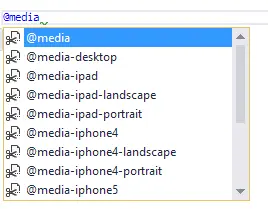 Web Essentials has snippets for CSS media queries, and these are a great help. First, there’s the
 @media snippet, which gets you set up with a basic media query. The real power, though, is in the device-specific ones that produce the right set of CSS—and takes a lot of the searching for the right settings away.
Browser Link
I’ve demoed Browser Link many times & written about it before—it’s awesome. It gives any browser the ability to have a two-way connection with Visual Studio. That means the browser can send data to Visual Studio, useful for detecting things that happen only when rendering the DOM. Browser Link + Visual Studio can also send data to the browser—for example, telling it to refresh because the page has changed. Since it works with any browser, you can have multiple browsers open and work with all of them at once.
Browser Link isn’t an ASP.NET feature; it’s a web + Visual Studio feature. So if you’re using PHP or pure HTML (like in the video below), it just works.
For media queries, Browser Link can read browser dimensions into Visual Studio. This means all you need to do is set the browser to the right size, press Ctrl+Space on the right property of the media query, and it will show you the dimensions the browser is at that very moment! It means getting the exact right size for the browser window for sizing is trivial—you can work visually in your browser and have all the power in your tools.
Check out this video for how it works!
Have you got any awesome features in Visual Studio that are kinda hidden? Share them in the comments.