
Amazing Lock Screen
Having issues with the app? Need support? Want to just say thanks? Please use the feedback page!
This app was previously named Bing my lockscreen but has now been renamed to Amazing Lock Screen
 I am very proud to announce my very first Windows 8 application: Amazing Lock Screen – which does pretty much what the title says it does. In short: Bing has the greatest images & now you can get use them for your lock screen!
Bing My Lockscreen allows you to select from the eight most recent  Bing images and quickly select which of them to set your lock screen to use.
In addition Amazing Lock Screen allows you to automatically have your lockscreen updated daily with the latest image from Bing - thus ensuring a constant supply of inspiring and interesting new content for you!
You can get the app from the store using the download link below!

Bing my lockscreen makes use of icons created by the awesome (& free) Metro Studio 2.
Windows Store app Development Snack: Localised Resources & the Store
For more posts in this series, see the series index.
One of my applications had two sets of images, one with English and the other with Russian. While it is great to support both languages I did not want to fully localise the application, such as changing all the labels because I do not have the time & resources to do that. When I setup the project I put the English images in a folder named Comic/en and the Russian images in Comic/ru.
When I built the application I noticed some smart messages in the compiler about finding localised content – which I thought was nice and just ignored it.

(The text there is: MakePRI : warning 0xdef00522: Resources found for language(s) 'en, ru' but no resources found for default language(s): 'en-US'. Change the default language or qualify resources with the default language. http://go.microsoft.com/fwlink/?LinkId=231899)
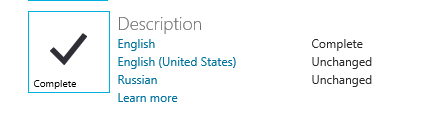
The problem is that when you upload to the Windows Store that information is used to figure out what markets your application should be localised for, this meant I needed to submit a description for English, US-English & Russian! This would allow me to write the description in different languages but since that is not in my scope it became a hassle.
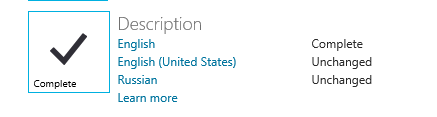
The “fix” was to prefix the folder with lang (so en became langen) – this tricked the compiler into not seeing this as localised and removed the problem.
The power of Lightswitch - eyeQuu
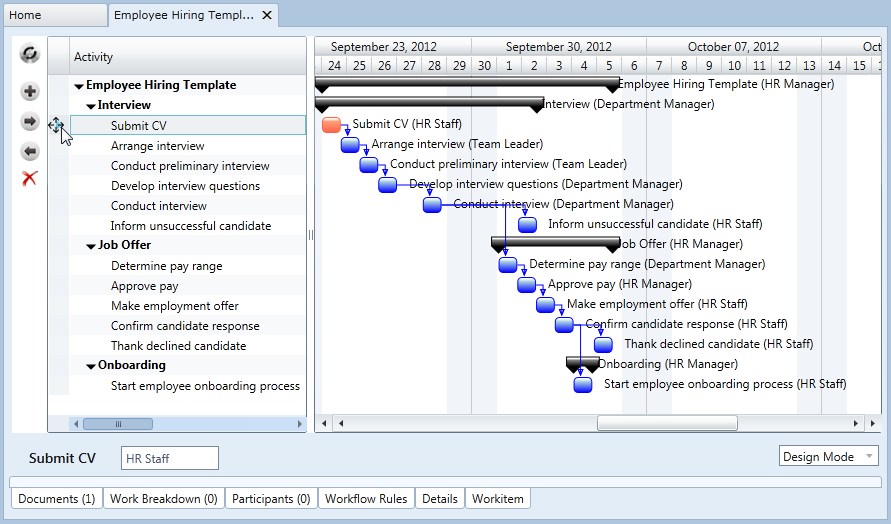 I was recently contacted by Thabo Letsoalo of eyeQuu, a South African software start-up, who has produced a SaaS (software as a service) offering built on top of Windows Azure & LightSwitch! The solution is a full work management tool, including task management & project management features! I am not going into too much detail here because the website does it far better than I can.
I often talk about LightSwitch and why it is perfect for many situations and this is a great example of a number of those situations:
- It shows what is possible with LS, besides all the form stuff there is plenty of interesting systems like charts!
- It shows off using LS as the basis for building a business. I think this is a really great LS feature because rather than being stuck into thousand of hours of development and ignoring growing the business, LS enables you to have more time to grow the business since it handles a lot of the development for you!
- I love the fact it uses Azure, showing the power of the cloud, which allows it to offer a true multi-tenant service, scale massively and maintain the costs of a start-up all at the same time!
I really urge you to go and have a look at Thabo’s fantastic site!
Windows Store app Development Snack: InvalidOperationException for Share & Settings
For more posts in this series, see the series index.
With one of my earliest apps I kept having a problem with a COM exception being raised, when trying to setup the Share & Settings event handlers. A key factor is it didn’t happen all the time. I had it the following code on the constructor of my ViewModel class:
this.DTM = Windows.ApplicationModel.DataTransfer.DataTransferManager.GetForCurrentView();
DTM.DataRequested += ShareRequest;
Eventually I figured out that the exception was raised if the event was already attached, but this was in my view model class and this was in the constructor of the class (so should be new and fresh every time) – this didn’t make much sense to me. However the answer was in front of me the entire time: GetForCURRENTVIEW.
Windows 8 apps can be built in one of two ways:
- Page Model – This is the same model as Windows Phone 7 where when you want a new UI you navigate to entire new page, or view.
- Composition Model – In this model you have a single page, and you inject content in the form of user controls into the page. I am working with AtomicMVVM which follows this pattern.
The problem with the composition model, is that the events are tied to the page (or view) & since I never changed the page (just the content was swopped in and out), the event handlers were never being changed.
The solution for me was to make it possible for the view models to state if they have Share or Settings and then have a single place in the constructor to setup the configuration for the charms. I used a simple interface based system for this which the following code should illustrate. Since the event handler was attached once – the exception went away. This also allows my view to be very smart about the share & settings events and what it passes to those.
// during the startup I bind once to the event. Note that I onlt do this once the UI is up.
    bootstrapper.AfterStartCompletes += () =>
        {
            SettingsPane.GetForCurrentView().CommandsRequested += SettingCommandsRequested;
        };


void SettingCommandsRequested(SettingsPane sender, SettingsPaneCommandsRequestedEventArgs args)
{
    var settings = Bootstrapper.CurrentViewModel as ISettings;
    args.Request.ApplicationCommands.Clear();

    // if the view model implements the interface then I can call the method to set the commands it needs.
    if (settings != null)
    {
        settings.LoadCommands(args.Request.ApplicationCommands);
    }
}
For a complete example of this see the Metro Demo in the AtomicMVVM samples: MetroDemo
Windows Store app Development Snack: Secondary tiles with text
For more posts in this series, see the series index.
The call to pin a secondary tile looks like this:
SecondaryTile(string tileId, string shortName, string displayName, string arguments, TileOptions tileOptions, Uri logoReference);
The important part for this post is the last parameter: Uri logoReference. This is the the path to the image you want to show on the tile – but I had a problem, I didn’t want to show an image! I just had some text I wanted to show on the tile. After a lot of digging the solution was non trivial – generate an image at runtime. This was made even harder as the Render method in WPF does not exist in the XAML implementation used in WinRT.
WinRT does include a WritableBitmap class which allows you to create a in memory bitmap, manipulate the pixels and save to a file format with the BitmapEncoder classes. The problem for me is I do not want to fiddle with pixels manually – this lead me to WritableBitmapEx which is a great library for having primitives (fill, line, circle etc…), the only down side was that I wanted text, not graphic primitives.
 More searching lead to two posts on StackOverflow from XXX (post 1, post 2) which provided a solution:
- Create a sprite map using a free tool called SpriteFont201
- Use the code provided in the answers with WritableBitmapEx to extract the sprites and combine them with a WritableBitmap.
I took the code and adjusted it slightly so text would always be centred and allowed me to play with font scaling. I’ve attached the modified code to the post below.
In the end the code I used looks like this:
public async Task<StorageFile> CreateImage()
{
    uint width = 512;
    uint height = 512;
    var writableBitmap = BitmapFactory.New((int)width, (int)height);
    writableBitmap.Clear((App.Current.Resources["SecondTileColour"] as SolidColorBrush).Color);

    writableBitmap.DrawStringHoriztonallyCentred(this.DisplayPostalCode, 50, "title", Colors.White, 4);
    writableBitmap.DrawStringHoriztonallyCentred(this.Town, 175, "title", Colors.White, 2);
    writableBitmap.DrawStringHoriztonallyCentred(this.City, 275, "title", Colors.White, 2);
    writableBitmap.DrawStringHoriztonallyCentred(string.Format("box code: {0}", this.BoxCode), 375, "title", Colors.White, 2);
    writableBitmap.DrawStringHoriztonallyCentred(string.Format("street code: {0}", this.StreetCode), 450, "title", Colors.White, 2);

    var file = await Windows.Storage.ApplicationData.Current.LocalFolder.CreateFileAsync(Guid.NewGuid().ToString("N"), Windows.Storage.CreationCollisionOption.ReplaceExisting);
    using (var fileStream = await file.OpenAsync(Windows.Storage.FileAccessMode.ReadWrite))
    {
        var encoder = await BitmapEncoder.CreateAsync(BitmapEncoder.PngEncoderId, fileStream);

        encoder.SetPixelData(BitmapPixelFormat.Bgra8, BitmapAlphaMode.Straight, width, height, 96, 96, writableBitmap.ToByteArray());

        await encoder.FlushAsync();
    }

    return file;
}
Windows Store app Development Snack: Being a sharing target while your app is running
For more posts in this series, see the series index.
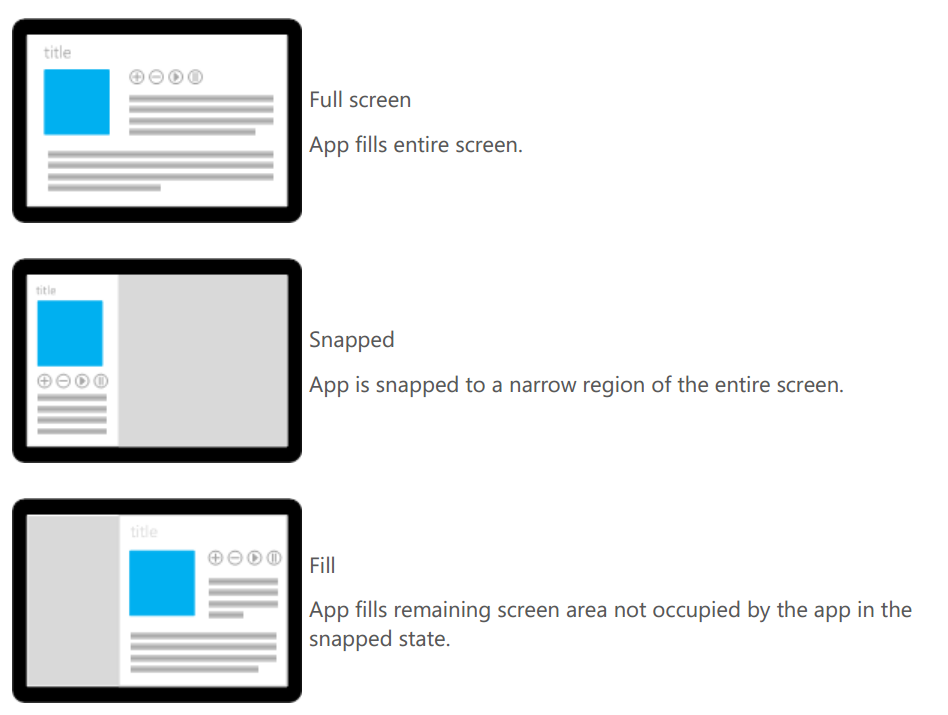 Being a share target seems like a great idea to get people to use your application more, however it does have a fairly complex problem: if I do a share to my application, while my application is running what happens – does it start a new instance or use the existing instance. You may say this can’t happen since Windows 8 doesn’t allow more than one application to run at a time… but you would be wrong.
Snap view in Windows 8 allows for two Metro style applications to run side by side thus allowing two apps to run at the same time. In fact you can run three apps at a time: one snapped, one filled and then you do a share target which launches a third app!
So back to the question, what happens if you app is say running in snapped view and you do a share from the filled app to your app which is currently snapped? The answer is it uses your existing application but from a separate thread.
To test this I put a simple Boolean field into the constructor of my App class which I set to true, then when the OnShareTargetActivated event was raised I checked the value of that Boolean field, and it was true if the app was running!
You should come up with a solution for this (or at least test it) – in my case the OnShareTargetActivated wrote to the application store and then my main UI which used that would poll for changes. I had to do this rather than triggering the UI because the OnShareTargetActivated was launched in a separate thread and trying to trigger caused a cross thread issue (I did try dispatcher fixes but that lead to a variety of COM issues).
Windows Store app development snack: Why is the store showing the wrong currency?
For more posts in this series, see the series index.
 To the right is a screen shot from the Windows 8 Store app on my machine, note the app called Cozy and in particular its price, it is in dollars… and I live in South Africa where we use Rands. :/
The store settings are controlled by the Windows Region settings, so to fix this you need to change the settings, which you can get by search for region:

Once in the region app go to location and change it from United States to South Africa, or where ever you are:

Next time you launch the store (you may need to do a reboot) it will be in the right country! 
Windows Store app Development Snack: A better architecture diagram
For more posts in this series, see the series index.
I have been talking a lot about Windows 8 recently and my slides have been using the architecture images Microsoft releases at Build 2011 & that awesome one Doug Seven created. However I have still found a lot of discussion exists even with those and they are showing their age.
I have tried to create a new one recently that addresses those issue:
- Age: DirectX can be used by VB/C# in addition to C++ now.
- Age: How does Windows Phone 8 fit the picture – note this may change, it is based on my assumptions and half info we have gotten.
- Discussion: Is WinJS = WinRT?
- Discussion: is .NET = WinRT?
- Discussion: Can I use my own JavaScript libraries like jQuery?
- Discussion: Can I use WinJS on the web?
- Discussion: Can I build desktop apps on Windows 8?
- Discussion: Can desktop apps run on Windows 8 ARM CPU's.
- Discussion: How does the language projection fit in?
Clearly this wouldn’t work in a single image – so I have created a slide deck that has a great overview image and also has build up experiences where step-by-step it builds the image with information and hopefully during that answers all the questions.
Windows Store app Development Snack: Series Index
This page is a list of the blog posts in my series of small articles related to things I am learning while building Windows Store apps. Existing snacks are listed below:
- A better architecture diagram
- Why is the store showing the wrong currency?
- Being a sharing target while your app is running
- Secondary tiles with text
- InvalidOperationException for Share & Settings
- Localised Resources & the Store
- Lock screen image pain
- Where is Microsoft-Windows-TWinUI exactly?
- Publishing your app, what has to be done before you publish?
- What is in a name?
- Knowing your (memory) limits, will avoid problems in the store!
- What the age restriction for apps means to developers.
- Stop asking for the SMS code when going to the dashboard
- Debugging a background task
- What do you get from being a lock screen app?
- Async & Sharing
- Feedback links in your app
- Simulator tips & tricks
- Changing the application theme from dark to light
- Debugging Share Target experiences
- Dealing with Async warnings
- Side loading apps for development purposes!
- The vastness of CPU time
- Background Colour
- File Type Association Icons
- Compress your images
- XAMLSPY
Future of certification with Microsoft.
Over the next 10 months the learning & certification program at Microsoft will change drastically. This post is really just a cheat sheet of the new certifications and exams that are coming, as always for the latest source of news on this check out: http://www.microsoft.com/learning/en/us/default.aspx
High level
At a high level the three tiers will change as follows:
- The MCP will certification will drop away and be replaced with MCSA (Microsoft Certified Solutions Associate). This applies to IT Pro’s & DBA’s – there is no MCSA for developers!
- The MCPD & MCITP will be replaced with MCSD (Microsoft Certified Solutions Developer) & MCSE (Microsoft Certified Solutions Expert) - yes, those are the same names from about a decade ago.
- The top level MCM will be replaced with MCSM (Solutions Master). I am not covering that in this post.
IT Pro’s
MCSA for IT Pro can be obtained in two ways:
- MCSA - Server 2012. Made up three exams:
- 410*: Installing and configuring Windows Server 2012
411*: Administering Windows Server 2012
412*: Configuring Advanced Windows Server 2012 Services - Can upgrade with the 417 exam from
- MCSA: Windows Server 2008
MCITP: Virtualisation Administrator
MCITP: Enterprise Message Administrator
MCITP: Lync Server Administrator
MCITP: SharePoint Administrator
MCITP: Enterprise Desktop Administrator - MCSA - Server 2008. Made up of three exams:
- 640: Windows Server 2008 Active Directory, Configuring
642: Windows Server 2008 Network Infrastructure, Configuring
646: Windows Server 2008, Server Admin - Can upgrade with the 417 exam from
- MCSA: Windows Server 2008
MCITP: Virtualisation Administrator
MCITP: Enterprise Message Administrator
MCITP: Lync Server Administrator
MCITP: SharePoint Administrator
MCITP: Enterprise Desktop Administrator
There are three ways to get an MCSE as an ITPro:
- MCSE Server Infrastructure: You need a MCSA – Server 2012 & the 413* (designing and implementing a server infrastructure) & 414* (implementing and advanced server infrastructure).
- MCSE Private Cloud: You need a MCSA – Server 2012 or MCSA – Server 2008 & the 246 (monitoring and operating a private cloud with system centre 2012) & 247 (Configuring and deploying a private cloud with system centre 2012).
- MCSE Desktop Infrastructure: You need a MCSA – Server 2012 & the 415* (implementing a desktop infrastructure) & 416* (implementing desktop application environments).
DBA’s
MCSA for a DBA can be obtained in one way:
- MCSA - SQL 2012. Made up of three exams:
- 461: Querying Microsoft SQL Server 2012
462: Administering a Microsoft SQL Server 2012 Database
463: Implementing Data Warehouses with Microsoft SQL Server 2012 - Can upgrade by doing both the 457 & 458 exams from any MCTS on SQL Server 2008
There are two ways to get an MCSE as a DBA:
- MCSE Data Platform: You need a MCSA – SQL Server 2012 & the 464 (developing Microsoft SQL Server 2012 databases) & 465 (designing databases solutions for SQL Server 2012).
- MCSE BI: You need a MCSA – SQL Server 2012 & the 466 (Implementing Data Models and Reports with Microsoft SQL Server 2012) & 467 (Designing business intelligence solutions with Microsoft SQL Server 2012)
Developers
There is no MCSA for developers so the three ways to get a MCSD are:
Web Application Developers requires three exams:
- 480: Programming with HTML 5 with JavaScript and CSS
- 486: Developing ASP.NET 4.5 MVC Web Applications
- 487: Developing Windows Azure and Web Services
- You can also upgrade to this from MCPD: Web developer 4 by doing
- 480: Programming with HTML 5 with JavaScript and CSS
- 492: Upgrade exam
Windows Store Apps using HTML 5 requires three exams:
- 480: Programming with HTML 5 with JavaScript and CSS
- 481: Essentials of developing Windows Store Apps using HTML 5 and JavaScript
- 482: Advanced Windows Store App Development using HTML 5 and JavaScript
- You can also upgrade to this from MCPD: Windows developer 4 by doing
- 480: Programming with HTML 5 with JavaScript and CSS
- 490: Upgrade exam
Windows Store Apps using C# requires three exams:
- 483: Programming with C#
- 484: Essentials of developing Windows Store Apps using C#
- 485: Advanced Windows Store App Development using C#
- You can also upgrade to this from MCPD: Windows developer 4 by doing
- 483: Programming with C#
- 491: Upgrade exam
*Beta exams currently - will change.