
SharePoint Search Tips and Tricks
I thought I would share some tips and tricks for improving the search experience with SharePoint:
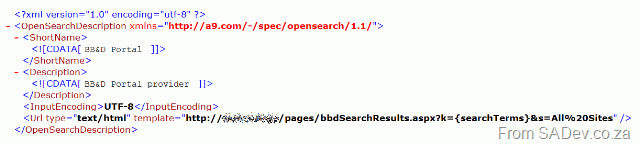
| In any company you will have people of different backgrounds and skills using SharePoint, and one of the first issues is that search isn’t fine grained enough, and that users either don’t know or don’t feel comfortable with advanced search features to get it fine grained. To make “normal” search easier just add Faceted Search. If you are interested in what that is go and check out the site. Next improve usage by lighting up SharePoint search to the browsers. Well what does that mean? It means that when you go to a website with a modern browser it “detects” the search functionality and allows you to add it to the build in search functions in your browser, so you can search the SharePoint site from your browser without even going to it first! It does this using an open standard called Open Search. To do this you first need to define an XML file which tells the browser what to do. Example:
Really simple, basically just the name and the encoding. The magic is handled by replacing the tag in the URL ({searchTerms}) with what the user is searching for. That file needs to be uploaded to a location on the SharePoint site where it can be read by users. The next step is exposing it to the browsers, to do this you just need to add a line to the header tag in your master page: 1: <link rel="search" type="application/opensearchdescription+xml" href="/search/searchdefination.xml" title="BB&D Portal" /> Now the browsers will see the tag and light up the search facility! This is really helpful for improving adoption of search. Next up it would be great to search multiple locations and you can thanks to a feature in SP 1 called federated search. Where your search query actually calls other web sites for results and places them in a special section of the site, defined by a web part. As I am personally interested in a lot of technologies I think it would be great to have federated search to: Wikipedia, Linux.Com, Java.Sun.Com, MSDN.Microsoft.Com and TechNet.Microsoft.Com, like shown on the left. What you may notice is that MSDN already has support for federated search, but the rest don’t! So how do you get around that? Well Live.Com also does has support for federated search and it also has support for limiting results to a specific site. So all that is needed to do is to create a search provider configuration for live.com and limit it to the specified website. You can download the sample providers I created below: |
 |
The last tip is to implement a very clean landing page for the site with a search box on it. As the new landing is cleaner and smaller than the it meant the initial feeling of SharePoint is it is that it is quicker and more responsive and so it also will improve adoption. To get the search box to search properly using just a tiny bit of HTML + JavaScript which looks like this (assuming you have a textbox with ID called query), this will create the button:
1: <input type="button" width="100px" height="" value="Search" onclick="window.location='/pages/SearchResults.aspx?k='+document.getElementById('query').value+'&s=All%20Sites';">
Slide.Show and SharePoint: Part III - Deploy and final config
This is a multi-part series. The other parts can be found at
- Slide.Show and SharePoint: Part I – Configuring Slide.Show
- Slide.Show and SharePoint: Part II - Getting the data
In part II, I wrote about how to get the data out of SharePoint in a dynamic way using a custom ASP.NET web page which did the hard work for us. The last part of this series is getting that code to work on the SharePoint server. The first step is to create a folder on the server where you will put these files (available at the end of the post). This should be outside your SharePoint directory, something like c:\inetpub\wwwroot\addons would be a good place. Next you need to create a virtual directory on your SharePoint site in IIS which points to that folder. The defaults for the virtual directory will be fine, however from a safety point of view I would recommend it runs in it’s own application pool.
If you just created a ASP.NET application though and put it in there it would fail because the web.config file from SharePoint does some odd things. To get around that you need to few things to it. First clear all the inherited assemblies away (see line 6 below), this has the downside that all the defaults from the machine.config also disappear so you need to add the ones you need back (lines 7 to 13). Next you need to clear all inherited httpModules (see line 19) and lastly you need to increase the trust of this application to full (line 21). Since this is on a virtual directory this has the advantage that you are not messing with the SharePoint config and your SharePoint server will continue to run happily.
1: <?xml version="1.0"?>
2: <configuration>
3: <system.web>
4: <compilation debug="true">
5: <assemblies>
6: <clear/>
7: <add assembly="System, Version=2.0.0.0, Culture=neutral, PublicKeyToken=B77A5C561934E089"/>
8: <add assembly="System.Drawing, Version=2.0.0.0, Culture=neutral, PublicKeyToken=b03f5f7f11d50a3a"/>
9: <add assembly="System.Web, Version=2.0.0.0, Culture=neutral, PublicKeyToken=b03f5f7f11d50a3a"/>
10: <add assembly="System.Web.Services, Version=2.0.0.0, Culture=neutral, PublicKeyToken=b03f5f7f11d50a3a"/>
11: <add assembly="System.Xml, Version=2.0.0.0, Culture=neutral, PublicKeyToken=B77A5C561934E089"/>
12: <add assembly="System.Core, Version=3.5.0.0, Culture=neutral, PublicKeyToken=B77A5C561934E089"/>
13: <add assembly="ListMonkey"/>
14: </assemblies>
15: </compilation>
16: <authentication mode="Windows"/>
17: <customErrors mode="Off"/>
18: <httpModules>
19: <clear/>
20: </httpModules>
21: <trust level="Full"/>
22: </system.web>
23: </configuration>
That is really all the config you need for the application to run, however don’t forget the config for Slide.Show to run we looked at in parts 1 and 2.
Next up is briefly looking at how the application works. Firstly override render method of the ASP.NET page. In there I do a lot of validation of the inputs which are provided in the query string. This is also an opportunity to set defaults if certain values are not provided. Next, and very importantly, I set the output to be text/xml (this tells the client, in our case JavaScript what to expect). To do this I do:
1: Response.ContentType = "text/xml";
Then I call the lists web service of SharePoint which returns the results, which are parsed and rendered to XML (I am unfortunately using XMLNode still when I wrote this, instead of the beautiful XElement stuff… but I digress) and to the screen using:
1: Response.Write(outputDocument.OuterXml);
This XML is in the format Slide.Show expects and so it’s configuration system we setup last time can just use it! All of this gives us a real time integration into SharePoint with Slide.Show!!! :)
As promised the files are available for download. It has occured that the download gets corrupted for some reason, if that is the case I recommend using this download, which is compressed with 7-Zip. NOTE: I have not tested this beyond my own simple tests and your mileage may vary. If you have problems please post a comment here I and will respond.
The files also include the source if you are interested to see what late night coding after months of no coding produces (may not be my finest work… looking over it as I wrote this I felt the need to refractor grow).
Willy reviews my LINQ session
Yesterday was the day of my first full day training session, where I took a class of smart people through LINQ! It was MUCH more tiring than I thought it would be, both physically and mentally but felt it was a great session. I have yet to see my scores but I am hoping that it will be in the 90% from the verbal feedback I got. One of the smart people to attend was Willy who has gone and written a review on what was covered including source code! One nice thing is that the discussions brought up some more topics and that I have fine tuned the content last night so those coming to the next one (which still has a FREE community seat open, I think) will get a even more refined session!
Slide.Show and SharePoint: Part II - Getting the data
This is a multi-part series. The other parts can be found at
- Slide.Show and SharePoint: Part I – Configuring Slide.Show
- Slide.Show and SharePoint: Part III – Deploy and final config
In part I we focused on getting Slide.Show to work with the content editor web part (CEWP), now the next step is getting the image information out of of the picture library so Slide.Show can display it. The first point you’ll need to understand is how Slide.Show knows where to find the images. It does it with a DataProvider, which is really a XML file reader. In the default configuration it looks for a file in same directory as the configuration file named Data.XML for the information, but it can be overridden with a custom DataProvider, like the Flickr one which was used in the last step of part I. Unfortunately there is no SharePoint data provider yet so we need to either roll our own version or provide the SharePoint data in a format Slide.Show can work with natively. Both require development but I prefer the second option because it means that I am not investing massively into Slide.Show, rather I am investing my time into a tool to get the data out and then a small bit of time into formatting it for Slide.Show. The advantage of this means that should a better solution come along in the future I can easily change the formatting part and have it work with the newer system. The other advantage of the second option is a personal one, because I prefer C# development (which I will build the provider in) with all of Visual Studio’s helping and documentation to JavaScript development (which is what would have to be used for the DataProvider).
The XML format which Slide.Show requires is something like this:
1: <data>
2: <album ...>
3: <slide .../>
4: <slide .../>
5: <slide .../>
6: ...
7: </album>
8: </data>
SharePoint won’t give the data to us in the format so to solve this I wrote an ASP.NET page does the following:

The Get stage is fairly logical in that we connect to the Lists web service in SharePoint and using the GetListItems method we retrieve the items from the list which returns as an XMLNode, which is not the easiest way to work for two reasons. Firstly SharePoint has a lot of namespaces so using XPath to extract the items is tricky and annoying, but thankfully John Wood did post a nice way to work with the XMLNamespaceManager which I use. The second reason comes back to the reason why I am doing this in C# as opposed to a dedicated Slide.Show provider. Once I convert it to easier to work with structure I can do the outputting to various systems a lot quicker. So in this case I created a simple class which contains a few properties to define the slide image and pop that into a List<T>. I am a bit of a List<T> fan boy using it where I can because it is fast and it allows me to use Linq with it easily (yes I know I can use Linq To XML but I prefer the rich integration in VS of Linq to objects and the thought of SharePoint’s XML scares me), and using Linq will allow for some nice features later on.

The last stage Provide is where I take my list of slides and use it to build up an XMLDocument which I will return. The building of the XMLDocument is not rocket science (just a couple of foreach’s really), but the returning it may be of interest to some people so I will just cover that briefly. What I do is drop the PageLoad method of the ASP.NET page and work in the render method which allows me to get into the page life cycle earlier on and control a few more parts of the output using the Response class. There are only two things I really care about, first is Response.ContentType which specifies to the caller (normally your browser but in this case Slide.Show’s DataProvider) what the content is. So we set that to Text/XML. This is one of the first things I do, and then one of the last things I do is send the XMLDocument.OuterXML to the browser using Response.Write. Provided I have done all my stages correctly I should be able to browse to the ASP.NET page and see XML formatted as I wanted it.

Part of building this also means making it reusable so there is a couple of things I did. First off the security is handled using built in Windows Authentication which may be a problem on web facing sites but it does mean that on intranet sites the security of the list items is maintained which is vitally imported. This is easily done by getting the configuration on IIS right (which we will cover in part III) and setting the Lists.UseDefaultCredentials to true. The next two vital configuration items are the URL to the lists web service and the name (or GUID) of the list we want. This is done using mandatory query string parameters (failure to provide them throws an AgrumentException) so your most minimalistic query string would look like this:
http://sharepoint/addon/slideshow.aspx?url=http://sharepoint/site/_vti_bin/lists.asmx&list=Photo%20Gallery
Breaking that down it has the following parts
- http://sharepoint/addon/slideshow.aspx : The URL to the page we have created.
- url=http://sharepoint/site/_vti_bin/lists.asmx : The URL of the lists web service we want to call.
- list=Photo%20Gallery : The name (or GUID) of the picture library.
I have added support for a few extra optional items to the query string as well which allows you to tailor the results:
- view : Used to specify the view name (or GUID) you want returned. Leaving it out returns the default view. Type is a string.
- limit : Used to specify the number of items to return. Default is all items. Type is a integer.
- recurse : Used to specify if you want to recurse into folders or just return the items from the root. Default is to recurse. Type is a boolean.
- group : Used to create Slide.Show albums based on the folders. Default is false. Type is a boolean.
- random : Used to return the items (not albums, if group is true) in a random order. Default is true and type is boolean.
An example of using some of those options would look like this: http://sharepoint/addons/slideshow.aspx?url=http://sharepoint/site/_vti_bin/lists.asmx&list=Photo%20Gallery&group=true&random=false&limit=20

So the default provides all images (regardless of folders) in random order which looks great with the standard Slide.Show settings (lots of images, randomly displaying etc..).
That is the hard part of this, the last part is getting this web application to deploy on the server (some things to be aware of) and configuring Slide.Show to use it, which is surprisingly easy.
Automated Testing Testimonial
At the end of last week a very interesting document on doing automated testing was added to SA Architect, and what makes the document interesting is not the content (there is a lot out there on automated test) but the fact it is a document type I have never seen, it’s a testimonial.
What is a testimonial? It’s written by someone who worked with the system extensively and then provides their feedback, good and bad, on it. In some respects it’s like a white paper, but where a white paper may be more technology, brand, or system focused this is people and, to a smaller degree, project focused.
Congrats to Sacheen for providing this document and doing so well with it (it was the first time he had to write anything like this)!!
You can get the document here.
Thanks to Willy for the heads up!
Take your toolbox with you
Previously I posted about two ways to get SysInternals to your machine, well that great bunch have released yet another method! This time in a download package which contains all the tools and none of the fluff (so no BSOD screen saver)! This is a great addition for your toolbox! You can get it from here.
Thanks to Sarah for the heads up on this!
Dev4Devs!
Earlier this year I attended a great event called Dev4Devs which is run by Microsoft on a Saturday morning at their offices and invites any developer to get up and present for 20mins! This is a great introduction into a lot of things as well as a great place to start if you want to become a presenter. Well it’s happening again in October! I will definitely be there so head over to Eben’s blog for more details.
Random Tool Musings
First off is pptFlex which is an add-on for PowerPoint which provides a DeepZoom (those at the TechEd closing know what I mean) like experience with your slide deck. It's an Office Lab add-in so a prototype that will never see the main stream. After a touch of configuration (select backdrop, transition between slides, configuring sections) it appears to generate an XPS render of the slides with cool transitions but as XPS doesn't support animation that is the first (and biggest) loss in functionality when compared to normal PowerPoiunt. At the end of the day I doubt it will be shipped, but I think we may see these sort of transitions appearing in Office "13".
In my upcoming post on shrinking a VHD, I briefly mention that I reclaimed the disk space by emptying the SQL log file. That is a bad idea for most systems for many a reason beyond my non SQL guru mind, but if you are interested in how to do it anyway see the following article which is what I used my guidance: http://madhuottapalam.blogspot.com/2008/05/faq-how-to-truncate-and-shrink.html
Lastly there have been updates to some of my favorite tools, first from Microsoft namely StyleCop and FxCop which both are everyone. That’s very positive news especially since FxCop has been a bit stagnent but the news about another favorite tool, Reflector being taken over by RedGate (see here) does worry me. I do not think they will kill it or kill a free version but I am worried about two versions coming out (pay and free) with pay being all the features and new stuff and free being crippled or not getting enhancements. Only time will tell...
Slide.Show and SharePoint: Part I - Configuring Slide.Show
This is a multi-part series. The other parts can be found at
- Slide.Show and SharePoint: Part II – Getting the data
- Slide.Show and SharePoint: Part III – Deploy and final config
This was inspired by a post on the IWSA group, about how to get a decent slide show in SharePoint using a picture library as a source. The poster went on to say he Slide.Show looked like it would meet his need and wondered if it could be used. For those who do not know Slide.Show is a cool Silverlight 1.0 component which takes a list of images and displays them as a slide show, with the presentation looking brilliant. Slide.Show has options like pausing, skipping the current image, viewing a grid of thumbnails so you select which one to skip to, and even a full screen view! It has in fact over 300 options you can tweak to get it just the way you like it!
/>If you don't know what SharePoint is, how is life under that rock? ;) SharePoint (or as it is officially known as Microsoft Office SharePoint Server) is a cool system too, it has all kinds of functions for document management. One of them is a picture library but the downside of the picture library when displayed normally is a boring list or if you configure it one static picture… *YAWN*. So there is a perfect harmony just waiting occur!
But how can you use Slide.Show together with SharePoint? I wish it was as straight forward to add a web part in, but it isn't. That said it is not difficult to get up and running and requires a few tricks and thinking outside the SharePoint box to get up and running.
The first step is to add a Content Editor Web Part (CEWP), which can be found under the Miscellaneous section. 
The CEWP is interesting in that it allows you to set the content using rich text (ala Microsoft Wordpad like options) or actually put the HTML directly into it using the Source Editor option. Being able to put HTML directly in does not mean just HTML, but means that you can actually put anything in it and have total power of what will be rendered! Since we will be using a lot of JavaScript this is exactly what we need to use, to get Slide.Show into SharePoint.

The first step in getting this working is to get Slide.Show setup, so once you have downloaded the source package and extracted it you need to run the release.bat file which will combine a lot of JS files into two files in a release folder. You then need to take the release folder and place it in a folder under your SharePoint web site, which is definitely the cleanest way to configure it, but I preferred to take the Slide.Show folder (part of the files extracted) and place it under the SharePoint web site as it allows me to run some tests to make it easier to get the system setup correctly as in the screen shot below.

If you have also followed my thinking about taking the slightly messier config, you should be able fire up your favorite browser and type in http://<your website>/slide.show/samples/empty/default.html which should show you a pure black screen (right click and it should say Silverlight config). The point of that boring sample is that it just makes sure that the content is available, there is no server issues or client issues preventing it for working. Another simple test to check everything is configured correctly is to go to http://<your website>/slide.show/scripts/release/silverlight.js which should prompt to download it (like in the picture below).

Now that Slide.Show is configured correctly we will get back to the CEWP we now need to plop the code into it to make it work. Since the CEWP allows us to actually drop in any source, we will use that to put in the JavaScript we need for Slide.Show to work. This is where we lose the straight-forwardness of doing this, because if you thought you could follow the Slide.Show quick start guide and get it to work… you would be screwed. This is because we can't put in the <script> tags in the header of the page like the quick start guide tells us as SharePoint won’t let that happen. So our first step is to put our own code in to load and run the JS files and then we can then start using Slide.Show as normal.
To do this we first need a to tell the system that we will be running some JavaScript by a normal script tag:
Note: A complete version of the JavaScript is available at the end of the article without number to allow for easy copy and paste.
1: <script language="JavaScript">
Next we will use the XMLHttpRequest class to load the JS file synchronously. However if we just called XMLHttpRequest then this would only work in real web browsers (IE 7 and higher, Firefox etc…) but since so many people use older IE versions we need to cater for them by adding a bit of code like this (source of the next 8 lines is not my bubble like mind but Wikipedia):
1: // Provide the XMLHttpRequest
    class for IE 5.x-6.x:
2: if( typeof XMLHttpRequest == "undefined" ) XMLHttpRequest = function() {
3: try { return new ActiveXObject("Msxml2.XMLHTTP.6.0") } catch(e) {}
4: try { return new ActiveXObject("Msxml2.XMLHTTP.3.0") } catch(e) {}
5: try { return new ActiveXObject("Msxml2.XMLHTTP") } catch(e) {}
6: try { return new ActiveXObject("Microsoft.XMLHTTP") } catch(e) {}
7:   throw new Error( "This browser
        does not support XMLHttpRequest." )
8: };
For the following example we will just load one file, but when we are done we will need to repeat this for all our JS files:
1: var silverlightRequest = new XMLHttpRequest();
2: silverlightRequest.open("GET", "/slide.show/Scripts/Release/Silverlight.js", false);
3: silverlightRequest.send(null);
NOTE: If you have put Slide.Show in a different location to me then you need to adjust the second line as needed.
The last line of loading the file is to call the eval function which will allows us to execute the JavaScript from the JS we retrieved. This enables the classes and methods will be available to us:
1: eval(silverlightRequest.responseText);
Once we have loaded both Slide.Show JS files, we can then use Slide.Show as normal by calling:
1: new SlideShow.Control();
1: </script>
Now click OK to close the HTML source code editor and OK (or apply) again for the web part and it should give us the same result as our first test, the empty sample. That’s kind of boring so to end off part one in this series lets modify the Slide.Show creation line to load a configuration file from one of the samples, and we will use the Flickr one as it requires nothing on the machine. The modified Slide.Show creation line with the configuration specified looks like:
1: new SlideShow.Control(new SlideShow.XmlConfigProvider({ url: "/slide.show/Samples/Flickr/configuration.xml" }));

The full JavaScript that we would place in the CEWP to get it this far would look like this:
<script language=
"JavaScript">
// Provide the XMLHttpRequest class for IE 5.x-6.x:
if( typeof XMLHttpRequest == "undefined" ) XMLHttpRequest = function() {
try { return new ActiveXObject("Msxml2.XMLHTTP.6.0") } catch(e) {}
try { return new ActiveXObject("Msxml2.XMLHTTP.3.0") } catch(e) {}
try { return new ActiveXObject("Msxml2.XMLHTTP") } catch(e) {}
try { return new ActiveXObject("Microsoft.XMLHTTP") } catch(e) {}
throw new Error( "This browser does not support XMLHttpRequest." )
};
var silverlightRequest = new XMLHttpRequest();
 silverlightRequest.open(
"GET", "/slide.show/Scripts/Release/Silverlight.js", false);
 silverlightRequest.send(
null);
eval(silverlightRequest.responseText);
var slideshowRequest = new XMLHttpRequest();
 slideshowRequest.open(
"GET", "/slide.show/Scripts/Release/SlideShow.js", false);
 slideshowRequest.send(
null);
eval(slideshowRequest.responseText);
new SlideShow.Control(new SlideShow.XmlConfigProvider({ url: "/slide.show/Samples/Flickr/Configuration.xml" }));
</script>
- Update – 25 Sept 2008: I have cleaned up this post a bit to make it easier to understand.
- Update – 26 Sept 2008: Added information/fix to get it to work on older IE versions.
Team Foundation Server could not resolve the user or group
Next up was the migration of VSS to TFS, which was actually not a major requirement as it is just there for legacy projects. All active projects would have to check their code into new TFS projects planned to create in TFS. The key benefit of this is it would allow us to align with EPM better than the migration tool would allow us to. I created a project, and imported the 1.7Gb of source code into it! It took some time. Then I needed to add the users, and this is where I met a problem.
Regardless if I used the command line, or the TFS admin tool or the GUI I kept getting an error: Team Foundation Server could not resolve the user or group. <AD Distinguished Name of the User>. The user or group might be a member of a different domain, or the server might not have access to that domain. Verify the domain membership of the server and any domain trusts.

The AD issue and TFS issue both revolved around the fact that in our AD the Authenticated Users (AuthUsers) group does not have read permissions to our users and the containers they are in. This is odd to the outside person because when AD is setup the AuthUsers group does have permissions, so why would our AD be different and what are the implications of changing it. The reason there is a difference is because our AD is setup according to Hosted Messaging and Collaboration (you can read more about it here) which specifically removes the AuthUsers group permissions for security reasons (i.e. to prevent users from seeing other customers). Because of this change, the GPO could not access the users accounts and neither could TFS read from AD what it needed.
To solve this for TFS meant giving AuthUsers read permissions to the users who needed to access TFS and their immediate container while for AD/GPO it required just AuthUsers to have permissions on the container for the users (it doesn’t need the permissions on the actual users) and all it’s parent containers. Once those were done the group policies and TFS started to work 100%.
That’s great but what is the impact to the hosted environment and is this the best way to solve the issue? Well this does open up a security risk in that customers could see other customers, simply by logging into the domain. For us this is mitigated as we are not offering hosted TFS, this is just for our own internal staff who are aware of who our customers are and we aren’t worried if our customers know about our staff. It is also very difficult for a customer to see other customers as most applications don’t allow it and those that do allow it in their standard configurations, such as MSCRM, ignore it in a HMC environment.
In regards to is this the best way to solve the issue, my view is that it is not it. You should run a separate AD for each customer, this is a normal AD system which runs at the client premises and using the Customer Integration component of HMC (which is based on MIIS) sync the customer AD to the hosted AD. This means that you could run GPO’s and TFS on the customer site without the need to change anything in a hosted way.